
This is the largest page, and it contains all settings of a playout. The canvas and the number of playouts are at the top. Below them is a tab for each playout, with all settings of that playout.
The subjects themselves are described in part 5 and part 6. This page shows where each setting is.
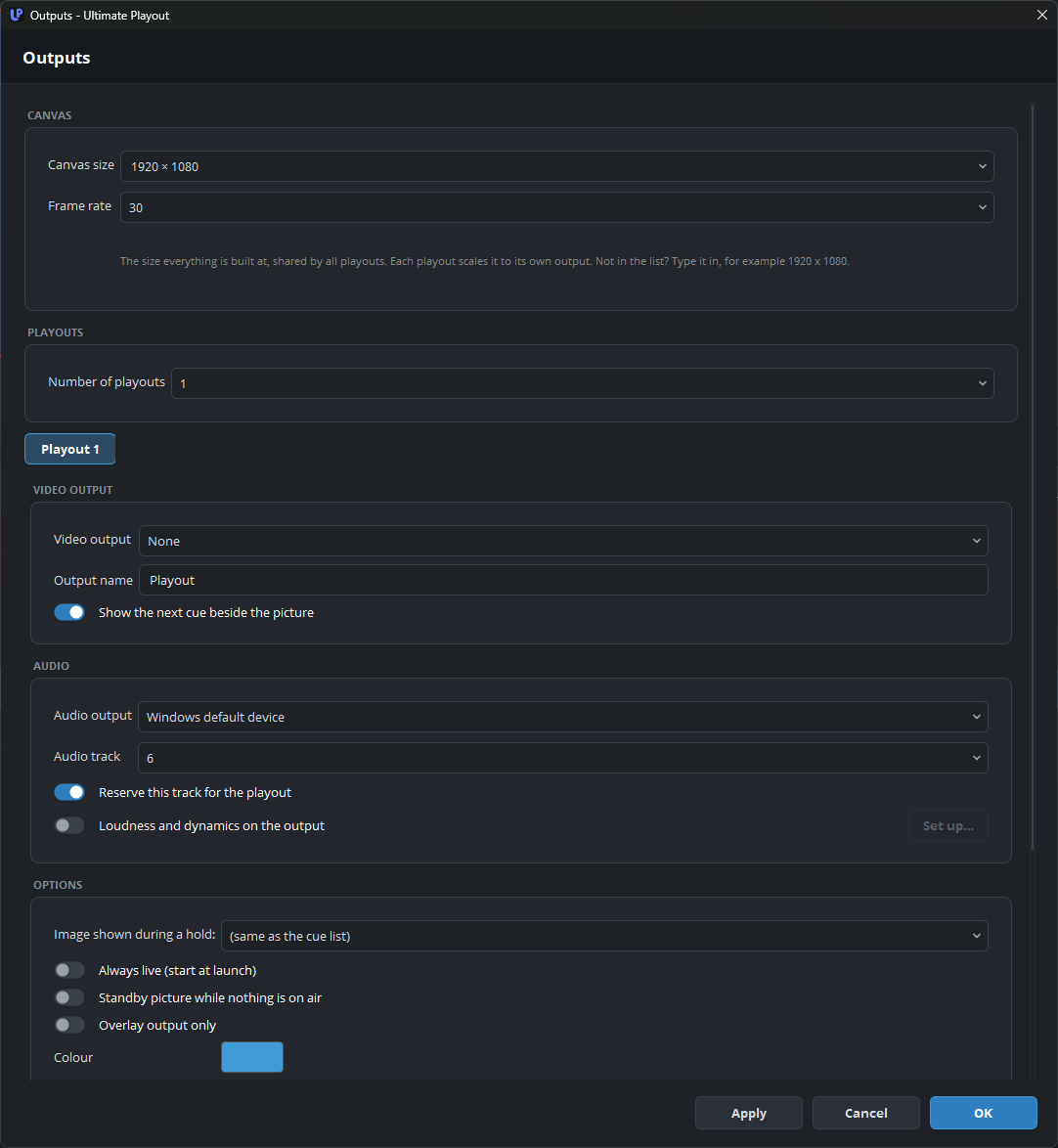
Canvas
All playouts share the canvas, which is at the top of the page:
| Setting | What it does |
|---|---|
| Canvas size | The size in which everything is built. If the size you need is not in the list, type it in this form: 1920 x 1080. |
| Frame rate | The frame rate in which everything is built. |
A DeckLink output starts only when its mode has the same frame rate. When you change the frame rate, the program lists the outputs to check.
Stop the stream and the recording first. The program does not change the canvas while either is running, and it tells you so. For more information, see canvas and frame rate.
Playouts
| Setting | What it does |
|---|---|
| Number of playouts | One to four. Each playout gets a tab below: Playout 1 to Playout 4. |
A new playout is empty: it has no rundown and no output, and nothing is live. As soon as you give it an output and a name, it is ready to use. See more than one playout.
Each extra playout renders and encodes its own picture, so two playouts need about twice the processing of one.
Video output
| Setting | Applies to |
|---|---|
| Video output | None, Screen / projector, Stream / recording. DeckLink is available only when the computer has a card. NDI is available only when DistroAV is installed |
| Device, Mode | DeckLink |
| Keyer | DeckLink. The options are Off, External (fill + key) and Internal (over the input) |
| NDI name, NDI group(s) | NDI |
| Which screen | Screen / projector |
| Server, Stream key, Sign in to the server | Stream |
| User name, Password | Stream, when Sign in to the server is ticked |
| Output size, Total bitrate, Audio bitrate, Encoder | Stream |
| Recording folder, Recording format, Record while streaming | Recording |
| Also save as MP4 afterwards | Recording. Hidden when the format is MP4 |
| Output name | All types. The name appears in the log, in the status bar and on a remote control |
| Show the next cue beside the picture | All types. Shows the picture of the next cue beside the preview |
Audio
| Setting | What it does |
|---|---|
| Audio output | The sound device on which you hear this playout at the desk. |
| Audio track | Which of the six tracks this output carries. |
| Reserve this track for the playout | Removes all other sources from that track. |
| Loudness and dynamics on the output | Brings the mix of the playout to a target loudness, with a gate, a compressor and a limiter. Set up… opens the controls. |
Leave reserve on, unless a source outside the playout must reach the output. The page audio tracks explains what this setting prevents.
Set up… works only while the loudness processing is running. So tick the box, press Apply, and then set it up while you listen.
The whole Audio group disappears when Overlay output only is on, because such a playout has no sound.
Options
| Setting | What it does |
|---|---|
| Image shown during a hold | The hold image of this playout, or (same as the cue list). |
| Always live (start at launch) | The playout goes live automatically when the program starts, with the cue that was live when you closed the program. |
| Standby picture while nothing is on air | The output shows the standby picture, or black, while nothing is on air on this playout. The monitor in the window continues to show the scene. |
| Overlay output only | The playout draws only the output page. It has no cue list and no audio, and you cannot select it. |
| Background colour instead of transparent | Appears only when Overlay output only is ticked. Use it for an output without an alpha channel. |
| Background colour | Appears when the previous setting is ticked. Sets the colour to key on later in the chain. |
| Make this playout secondary (narrow) | Appears only with more than one playout. Gives the playout a narrow panel in the window. |
| Colour | The accent colour of the playout. Click it to choose a colour. |
Always live is for a screen that must never be black, such as a display in the foyer or a screen in the hall. It changes only the start, so you can still start cues on the playout, stop it and edit its list. See permanent playout.
Leave the standby picture off for an output that is keyed over a picture in a mixer, because a layer that covers everything would make the whole picture black.
When Overlay output only is on, the hold image and Always live also disappear. See overlay output.
The colour is used for the background of the list, for the panel and for the block in the status bar. Choose colours that are clearly different in a dark room: blue and amber work well, but two shades of blue do not. See name and colour.
Shortcuts
| Setting | What it does |
|---|---|
| GO (take), STOP (to black), Arm next cue, Arm previous cue, Cut to black | One key for each action, for this playout only. Click the button and press the key. Backspace removes the key, and Esc cancels. |
A playout that you have just added gets its shortcuts after you press Apply. The page hotkeys describes them further.