
This page contains the settings for the behaviour of the rundown. Most of them determine what a new cue starts with, so if you set them once, you save work in every list you build afterwards.
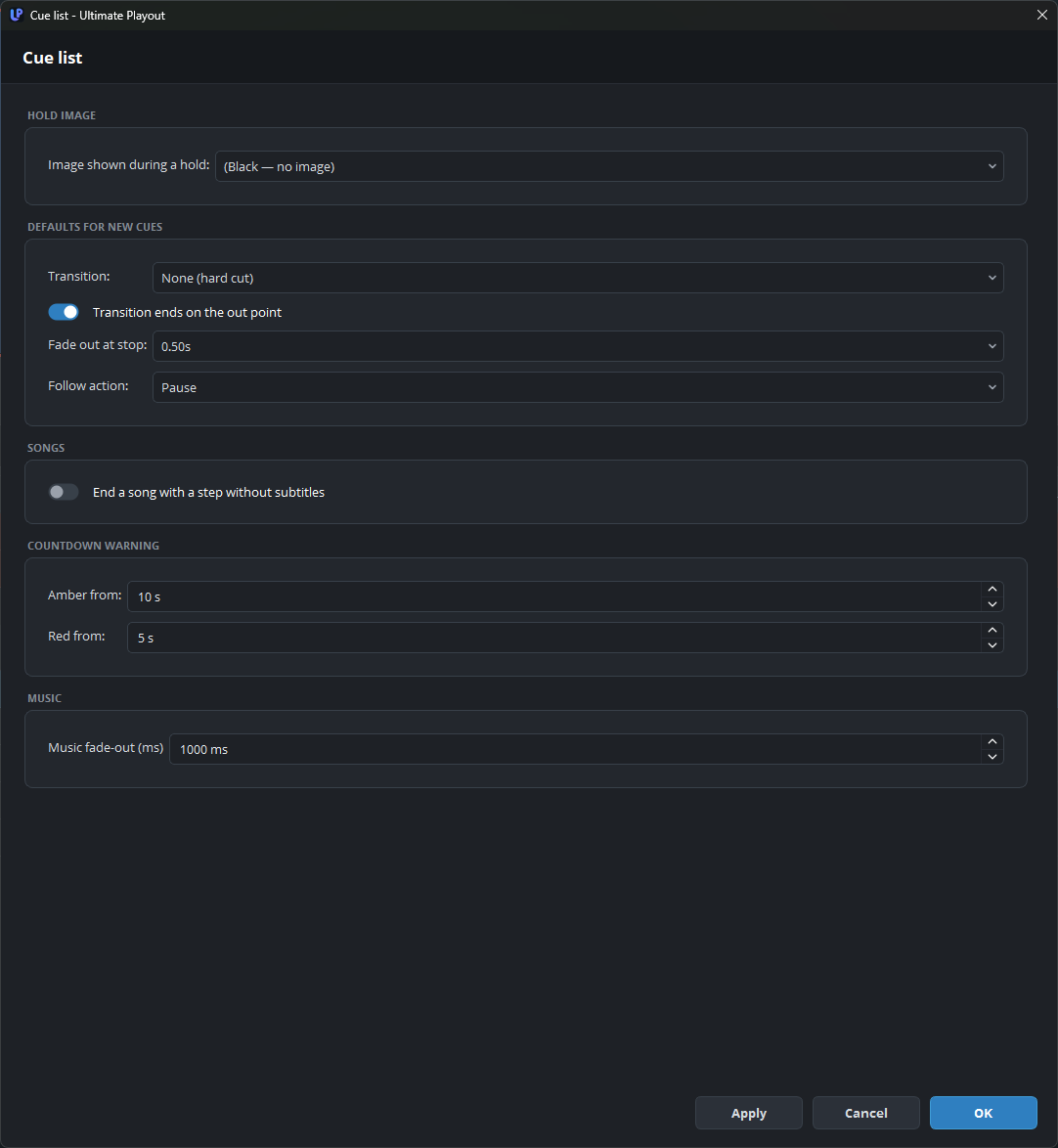
Hold image
| Setting | What it does |
|---|---|
| Image shown during a hold | (Black — no image), or one of your scenes. |
It is worth setting this once, because a hold on black looks like a fault, but a hold on a card looks like part of the programme. See hold.
Each playout can have its own setting under Outputs, where (same as the cue list) replaces black. One playout can therefore have its own hold card, while the others use the setting on this page.
Defaults for new cues
| Setting | What it does |
|---|---|
| Transition | None (hard cut), or a fade of 0.5, 1, 1.5 or 2 seconds, for new cues. |
| Transition ends on the out point | On: the fade ends exactly at the out point. Off: the cue plays in full to its out point, and the fade starts there. |
| Fade out at stop | The fade that the program uses when you press STOP, or when a cue with the follow action stop ends. |
| Follow action | Pause, Next, Loop or Stop (black), for new cues. |
Set Transition and Follow action to the values that your shows use most. Changing them does not change existing cues.
For Transition ends on the out point, neither option is better, because it is a matter of house style. See transitions.
Countdown warning
| Setting | What it does |
|---|---|
| Amber from | The number of seconds remaining when the countdown turns amber. |
| Red from | The number of seconds remaining when the countdown turns red. |
This is the warning for the operator on the transport bar, and not the clock that the audience sees. Ten and five seconds are suitable values, but use longer times if the operator has other tasks as well.
Music
| Setting | What it does |
|---|---|
| Music fade-out (ms) | How quickly a music bed fades out when the playout leaves its range. |
About one second sounds intentional. An immediate cut sounds like a fault, and four seconds sounds too slow.
What is not on this page
Cue types in the toolbar, which sets the buttons that the toolbar shows, is on the Modules page. Show subgroups collapsed after import appears only with a module that imports material as a group, and it is on the page of that module.