
This page describes how to choose an output and how to check that it works. The choice itself is one list. Most of the page is about what matters during a show, which is being able to see that the picture is really being sent.
The five types
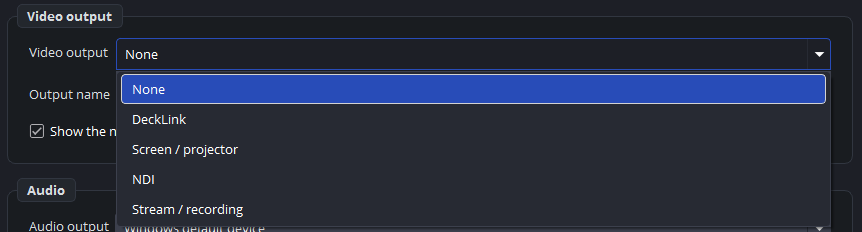
You choose the output for each playout under Settings → Outputs, under Video output:
| Type | Destination |
|---|---|
| None | No destination. The playout still works and shows a preview, which is useful while you prepare. |
| DeckLink | An SDI card, with fill and key if required. |
| Screen / projector | A full-screen window on a second display. |
| NDI | Other computers on the network. |
| Stream / recording | A streaming server, a file, or both. |
DeckLink is available only when the program finds a card, and NDI only when DistroAV is installed.
Each playout has its own output, and there is no shared output.
Reading the status bar
Each playout that is switched on has a block at the bottom right, in its own colour, which shows the state of the output:
| Text | Meaning |
|---|---|
50.0 fps · missed 0 (0.0%) | The output is running. fps is the number of frames that the output sent in the last second. This is a measured value, not the setting. missed is the number of frames that the playout could not render in time. |
screen 2 | A projector window on that screen. |
connecting… / recording / off | The state of a stream output. See part 6. |
failed to start | The output did not start. Move the pointer over the block to see the reason. |
window closed | Someone closed the projector window. |
Move the pointer over a block for more information. The tooltip shows which device is involved and what the numbers mean.
A projector window does not show an fps value, but the render lag on the left of the status bar also applies to that picture.
The standby picture
Standby picture while nothing is on air is a setting for each playout, under Settings → Outputs → Options. It is off by default.
When it is on, the output shows the standby picture while nothing is live on the playout, and it fades to the cue when you press GO. The standby picture is the hold image, which you set under Settings → Cue list → Hold image or with Image shown during a hold: on the playout. Without a hold image, the standby picture is black.
Leave this setting off for an output that is keyed over a picture in a mixer. In that setup the output lies over the other picture, so a standby layer would make the whole picture black.
When an output does not start
The most common cause is that the device is already in use: two outputs use the same DeckLink port, or another application is using the card. The tooltip tells you this.
The program does not give up. It restarts an output that did not start, so a device that was not ready at startup is used a moment later. The pause between attempts increases to two minutes, and after five failed attempts a window shows the reason, but the program continues to try.
For this reason, an output that shows failed to start for a moment is not always a problem. Check again after a few seconds before you look for a cause.
Practical advice
Set the output before you build the list. An output that has never started is easy to miss when the preview looks correct, because the preview does not depend on the output.
Check the block, not the picture. The preview shows what the playout renders, but the status block shows what is sent out, and during a show that is what matters.