
This page covers the first start of the program, up to an empty cue list that is ready to use. It explains the loading screen, where the program keeps your files, how to set the language, and which choices the program keeps after a restart. Return to this page when you want to know where a file is stored or why a computer uses the wrong language.
Starting
Always start the program from its own shortcut, which you find on the desktop, in the Start menu and on the taskbar. Do not start it from a file in the program folder, because the program then starts with only part of the Ultimate Playout interface.
The program first shows a splash screen, followed by a dark loading screen with the wordmark and one line of text that shows the progress:
| Line | What is happening |
|---|---|
| Starting up… | The program is loading. |
| Loading modules… | The modules are starting. |
| Building the interface… | The window is being built. |
| Starting playouts… | The previews and outputs are starting. |
The loading screen stays until the interface is ready, and a few seconds is normal on a computer that has just been switched on.
If the start takes much longer than usual, a module is almost always waiting for something, such as a network drive or a service that does not respond. The line on the loading screen shows at which stage the program is waiting.
The folders in Documents
At the first start, the program creates its own folders:
DocumentsUltimate Playout
  Lists      <- your cue lists (.playout)
  Exports    <- what you export: groups, bundles, selections
  Songs      <- empty in a base installation
These are normal folders, so you can back them up, put them on a network share or copy them to another computer. A cue list from one installation opens on another installation, as long as the media in the list is also available there.
Open and Save both start in Lists, which means that in daily use you do not need to browse to another folder.
The program always creates the
Songsfolder. It remains empty unless a module writes to it.
Choosing your language
The interface is available in English, Dutch, German, Norwegian and Spanish. The program starts in the language you chose in the setup, and you can change it later:
- Click the gear at the right end of the toolbar.
- Go to General → Language.
- Choose your language and confirm.
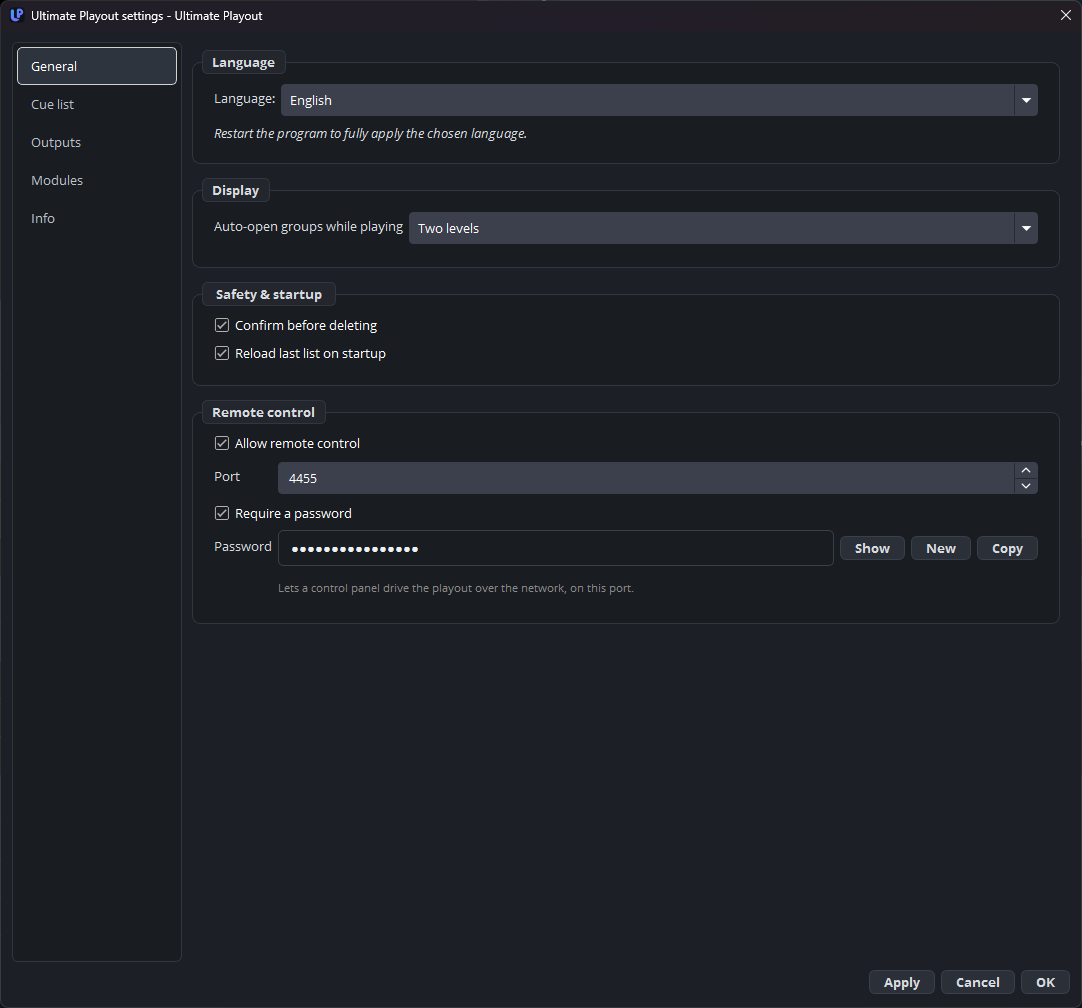
The categories on the left of the settings window are General, Cue list, Outputs, Modules and Info.
Restart the program after you change the language. Most of the interface changes immediately, but a few texts are built only at startup and keep the old language until the next start.
The language is a setting of the computer and not of a cue list, so your language does not change when you open a list made by someone else.
What the program remembers
The program keeps the following between sessions:
- The window layout: the width of the cue list and of the item pane, for each playout.
- Whether the item pane was open.
- Your settings, including the outputs, the number of playouts, the colours and the names.
- The last cue list, if Reload last list on startup is switched on under General. With this setting on, the program opens with your last rundown, and with the setting off, it opens with an empty list.
The program stores all of this in its configuration folder and not in your Documents folder. On a shared computer, this means that every user of that PC has the same settings. That is what you want on a control-room computer with changing volunteers. If users need personal settings, use separate computers or separate Windows installations.
What you see when the program is ready
When the program is ready, you see an empty cue list, one monitor panel with a black preview, and a toolbar. This is normal after a first start, because nothing is on air, nothing is armed and no output is running yet.

If your window does not have buttons that your colleagues have, nothing is wrong. Those buttons belong to modules that are not installed or not switched on, which you can check under Settings → Modules.