
This page describes the clock of the program, which is a source in a scene that counts down, counts up or shows the time. You use it to make a screen with the text “we start in ten minutes”, and it needs nothing outside the program.
Adding a clock
In the scene builder, choose Add source → New source of type → Clock / countdown. The properties of the source open immediately.
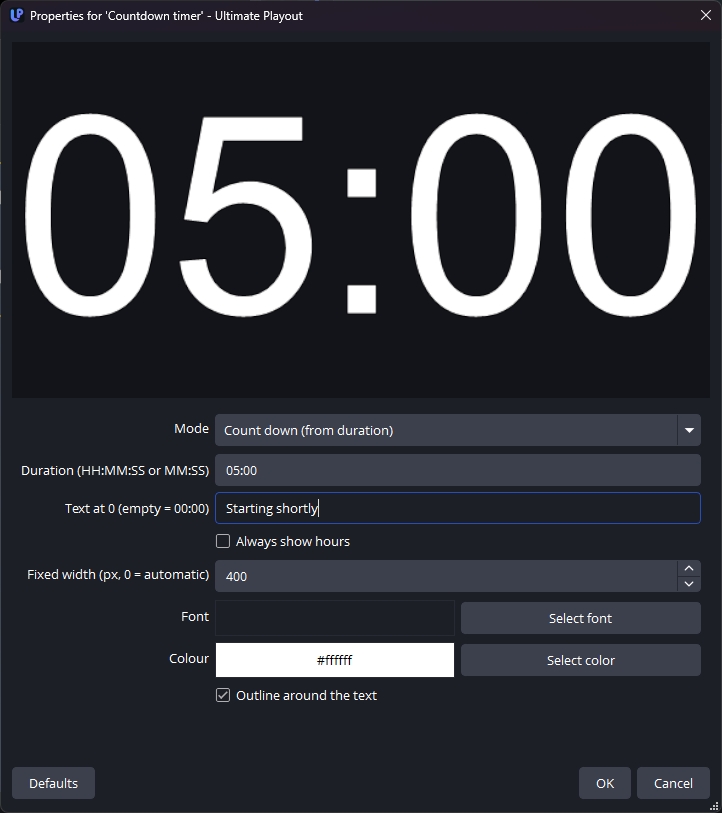
The five modes
| Mode | What it shows |
|---|---|
| Count down (from duration) | Counts down to zero from a length that you enter. |
| Count down (to a time) | Counts down to a date and time, for example today at 10:00. |
| Count up | Counts up from zero. It shows how long something has been running. |
| Current time (clock) | The time of day. |
| Current date | Today’s date. |
The two countdown modes look similar, but they answer different questions. Use Count down from a duration for “ten minutes from the moment this appears on screen”, and Count down to a time for “until the service starts at 10:00”. The difference matters when the cue goes on air earlier or later than planned.
The settings
| Setting | What it does |
|---|---|
| Duration | The duration as HH:MM:SS or MM:SS, for the duration mode. |
| Target time | The target as YYYY-MM-DD HH:MM, for the target mode. |
| Target = now (then adjust) | Enters the current date and time, so that you only need to adjust it. |
| Clock/date format | The format for the clock and date modes, for example %H:%M or %d-%m-%Y. |
| Text at 0 | The text that appears when the countdown reaches zero. If the field is empty, the clock shows 00:00. |
| Always show hours | Keeps 00: at the front, so that the width does not change when the clock passes an hour. |
| Fixed width | A width in pixels. Use 0 for an automatic width. |
| Font, Colour, Outline around the text | The appearance of the digits. |
Two settings explained
Text at 0. A countdown that reaches zero and shows 00:00 looks like a clock that has stopped, but a text such as Starting shortly or We begin now looks intentional. Remember that the audience sees this text at the moment when everyone is looking at the screen.
Fixed width. In most fonts the digits have different widths, so a countdown moves slightly each time the numbers change. A fixed width prevents this. Set the width slightly larger than the widest value you expect.
Related behaviour
The clock does not run until the cue goes live. It starts when the audience sees it, and not when you arm the cue. This is why the clock does not move in the scene builder.
A scene with a countdown sets the duration of the cue. The rundown reads the length from the clock, so you do not need to enter the same number in two places, and the countdown on the transport bar matches the countdown on screen.
Colours towards the end
The countdown on the transport bar turns amber and then red, at times that you set under Settings → Cue list. This is a warning for the operator only. The clock on screen keeps the colour you gave it.