
This page describes how to build a scene, which is a combination of sources that the rundown handles as one cue. Examples are a background with a countdown, a logo over a clip, and a picture-in-picture.
Opening the scene builder
Click Scene in the toolbar, choose New scene… and enter a name. The builder then opens. To change an existing scene, point to it in the menu and choose Edit…. The same submenu contains Insert, Rename… and Delete.
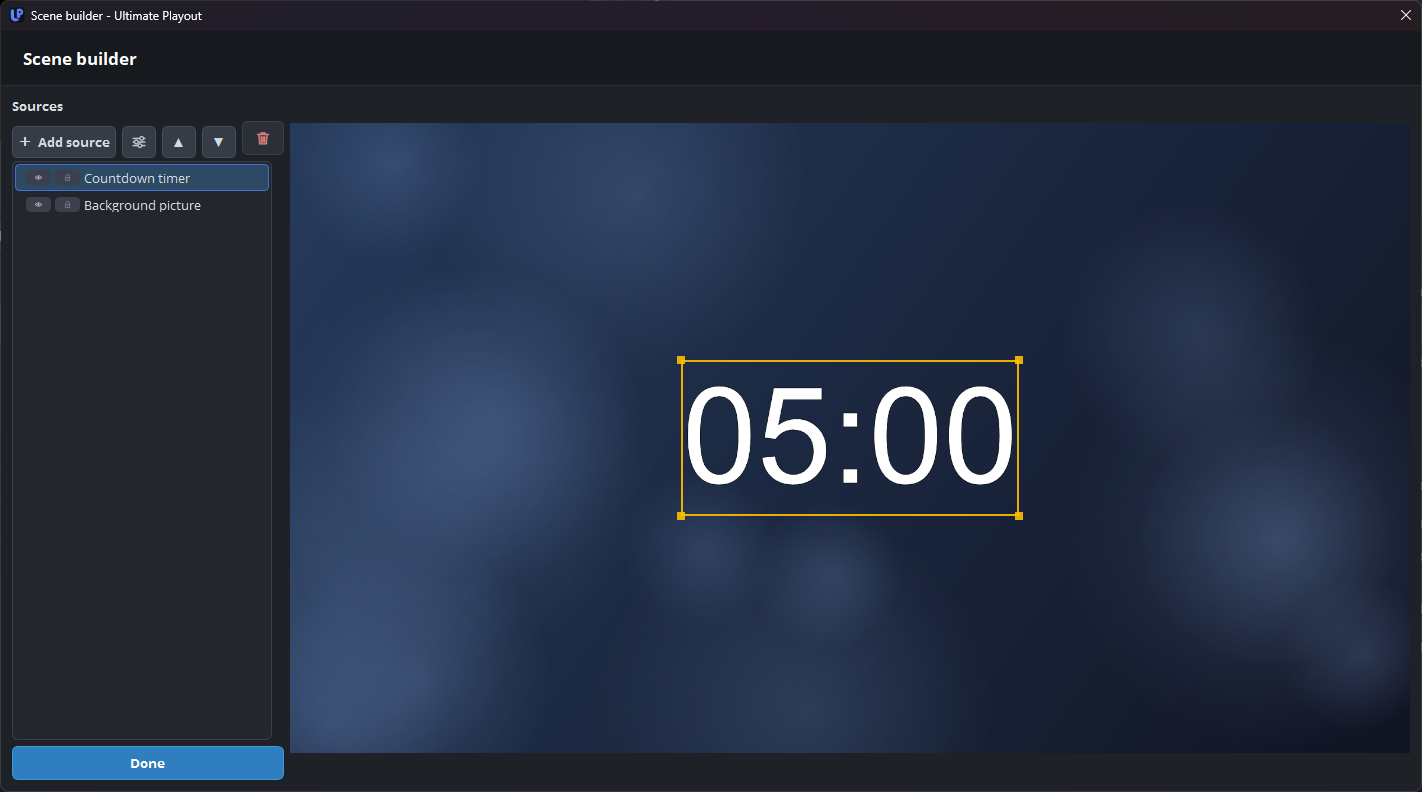
The controls
| Control | What it does |
|---|---|
| Sources | The list of sources in the scene. The source at the top is at the front. |
| Add source | Adds a new source to the scene. |
| The properties button (sliders) | Opens the properties of the selected source. You can also double-click the source. |
| Move up (to front) / Move down (to back) | Change the stacking order. |
| Remove selected source | Removes the source from the scene. |
| Show / hide | Sets whether the source is drawn. |
| Lock / unlock | Prevents the source from being moved or resized by accident. |
| Done | Closes the builder. |
To set the position and size of a source, drag it in the picture.
When you right-click a source in the picture, you get Properties…, Source filters…, Rename source… and Remove from scene. The right-click menu of the picture itself also contains Scene filters…, for filters on the whole scene. See filters.
The order determines what you see
The list is the stacking order, and the top of the list is the front. So place a background at the bottom and a logo at the top. If a source seems to be missing, it is usually behind another source.
Lock everything that is finished. It is easy to move a background by accident, and locking takes one click.
When to build a scene
| Situation | Build a scene? |
|---|---|
| Two or more things on screen together | Yes |
| A countdown to the start | Yes, with the clock source |
| A logo in the corner over everything, all evening | No. A scene cue goes off air at the next GO |
| One picture or one clip | No. A still or a media cue is simpler and cannot be changed by accident |
A scene is the most powerful cue type, and for that reason it is also the type where mistakes are most likely. If a simpler cue is sufficient, use the simpler cue.
Practical notes
Build at the size of the canvas. The program builds everything on the canvas, so a background of that size fits exactly. See canvas.
A clock in a scene does not run until the cue goes live, so in the builder the clock does not move.
A scene with a countdown sets the duration of the cue, so you do not need to enter the same number twice.