
This page covers building a scene: a composition of sources that the rundown treats as one cue. A background with a countdown over it, a logo over a clip, a picture-in-picture.
Opening it
Scene in the toolbar → New scene…, give it a name, and the builder opens. For an existing scene, point at it in that menu → Edit…; the same submenu holds Insert, Rename… and Delete.
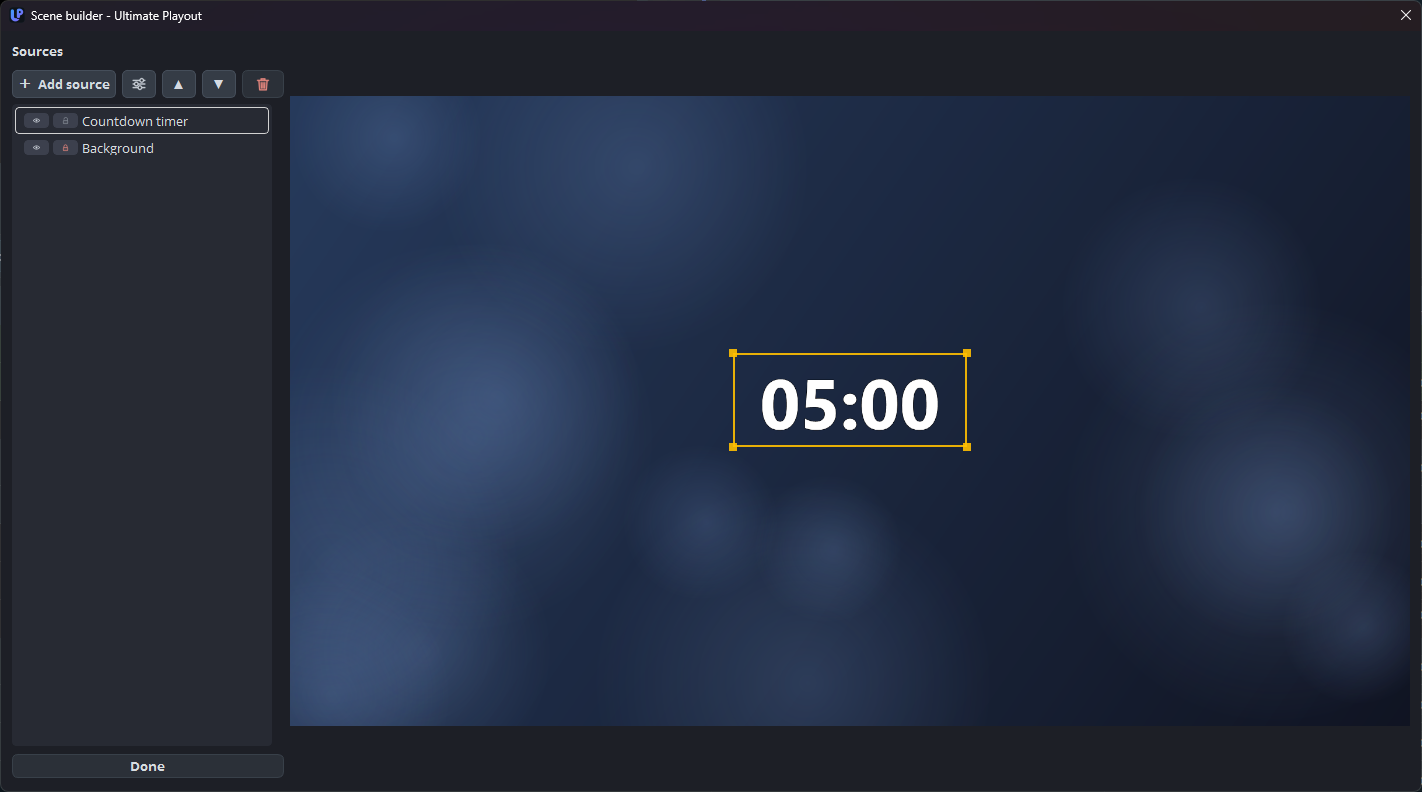
What is in the builder
| Control | What it does |
|---|---|
| Sources | The list of what is in this scene, front at the top. |
| Add source | Puts a new source in the scene. |
| The properties button (sliders) | Properties of the selected source (or double-click it). |
| Move up (to front) / Move down (to back) | The stacking order. |
| Remove selected source | Takes it out of this scene. |
| Show / hide | Whether a source is drawn at all. |
| Lock / unlock | Stops a source being moved or resized by accident. |
| Done | Closes the builder. |
Position and size are set by dragging in the picture, as you would expect.
Right-click a source in the picture for Properties…, Source filters…, Rename source… and Remove from scene. Scene filters… — filters over the whole scene, see filters — is in the right-click menu of the picture as well.
Order is what you see
The list is the stacking order: top is front. A background belongs at the bottom, a logo at the top, and a source that has disappeared is usually behind something rather than gone.
Lock what is finished. A background that is exactly right is one accidental drag away from being wrong, and locking costs one click.
What to build, and what not to
| Situation | Build a scene? |
|---|---|
| Two or more things on screen at once | Yes |
| A countdown to the start | Yes — with the clock source |
| A logo in the corner over everything, all evening | No — a scene cue leaves air at the next GO |
| One picture, one clip | No — a still or media cue is simpler and cannot be broken |
A scene is the most powerful cue type and therefore the easiest to get wrong. Where a simpler cue does the job, use the simpler cue.
Practical notes
Build at canvas size. Everything is composed at the canvas, so a background made at that size lines up exactly — see canvas.
A clock in a scene stays frozen until the cue goes live, so what you see in the builder is a still moment, not a running clock.
A scene with a countdown gives the cue its duration, which means you do not fill the same number in twice.