
This page names everything you see. It is the reference the rest of the documentation leans on: when a later page says “the transport bar” or “the item pane”, this is where those names are defined. Read it once now, and come back to it whenever a term on another page does not ring a bell.
Nothing here changes anything. It is a tour, not a task.
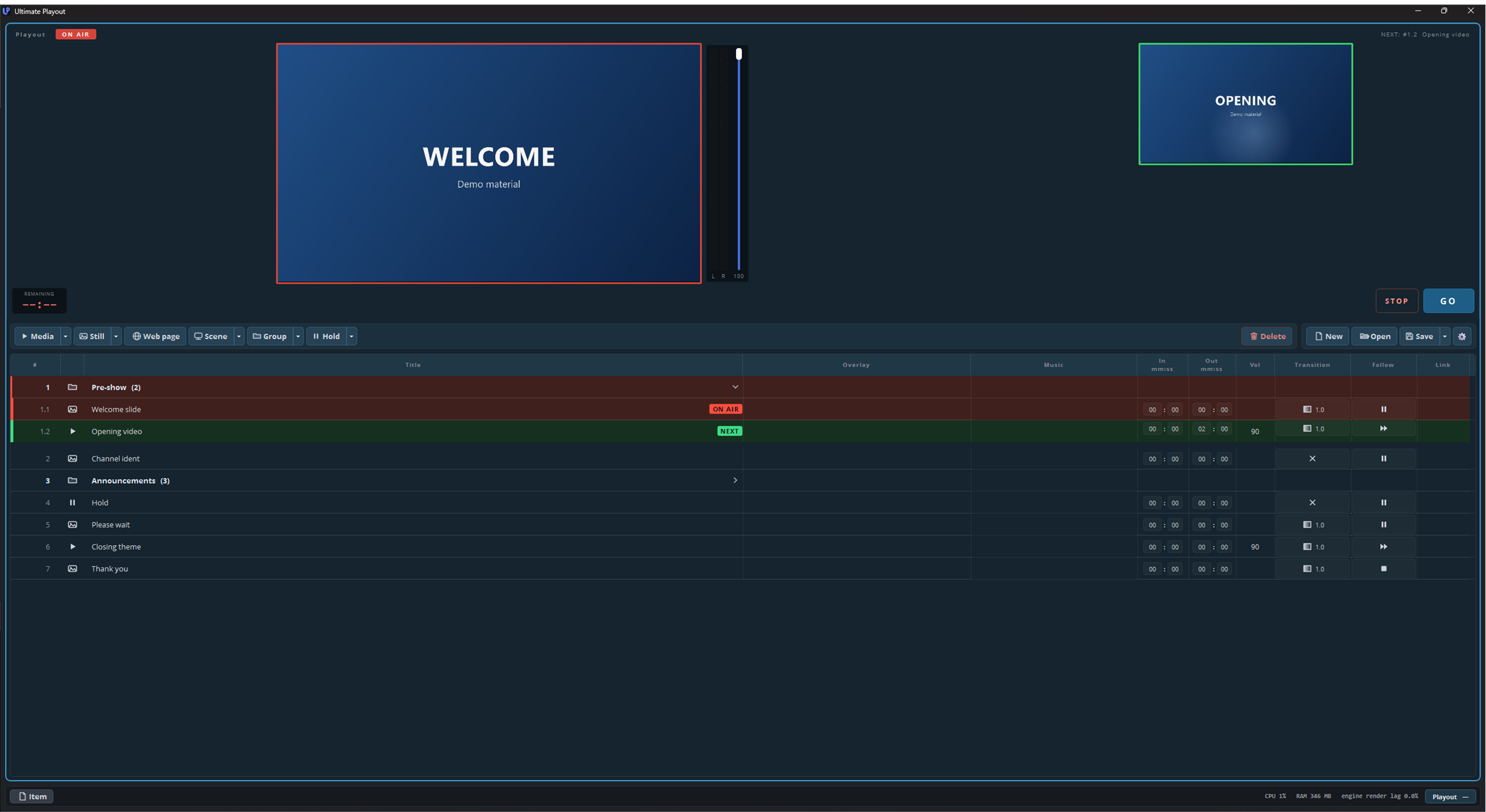
The three bands
The window is divided into three horizontal bands, top to bottom:
- The monitor panel — one per playout: preview, meters, transport.
- The work area — the toolbar and the cue list, with the item pane beside it when you open it.
- The status bar — buttons on the left, machine and output figures on the right.
The dividing line between the monitor panel and the work area can be dragged. More preview or more list — whichever suits the show.
1. The monitor panel
You get one panel per playout, side by side. With one playout it fills the width; with more, they share it.

From top to bottom:
The heading. On the left, Playout — with more than one playout, Playout 1, Playout 2 and so on. Next to it an ON AIR badge when something is playing out — the badge sits beside the name rather than replacing it, so you can always tell which playout you are looking at. On the right, NEXT: followed by the cue this playout will take to air on the next GO.
The preview, with a VU column against the edge of the picture showing left and right. A red border appears round it while something is on air.
The preview shows what is on air and nothing else — arming a cue never changes it. With nothing on air it is black, or shows the hold image. What you arm appears in the next-cue picture beside it.
The next-cue picture, beside the preview at half its size: the armed cue, loaded but not playing — a clip waits there on its first frame. Right-click the panel → Show the next cue beside the picture to switch it off; the same checkbox sits under Settings → Outputs, on that playout’s tab.
The master fader for this playout, beside the picture.
The transport bar, along the bottom of the panel:

From left to right:
| Control | What it does |
|---|---|
| Countdown | Under REMAINING: time left on what is playing, to a tenth of a second. Turns amber and then red as the end approaches, at thresholds you set yourself. |
| Play / pause | Holds the picture where it is, and lets it run again. |
| Restart | Back to the beginning of this cue. |
| Stop media | Stops the media itself, to black. |
| Timeline | Where you are in the cue. Drag it to scrub. The figures on the right show elapsed and total. |
| STREAM / REC | Start and stop streaming and recording. These two only appear when this playout’s output is a stream. |
| STOP | Stops this playout — to black. |
| GO | Takes the armed cue of this playout to air. |
Clicking anywhere on a panel makes that playout the active one, and the cue list underneath switches to its list. The whole panel is the target, picture included — you do not have to hit a tab.
2. The toolbar
Above the cue list, in two halves.

On the left, the buttons that add something. Several carry a small arrow with more choices behind it:
| Button | Adds |
|---|---|
| Media | Video and audio files. |
| Still | Stills. |
| Web page | A page to display — a schedule, a counter, a dashboard. |
| Scene | A scene as a cue. |
| Group | A container for a block of cues. Its arrow also holds Part and Load group. |
| Hold | A hold — a waiting point that stays until you go on. Its arrow holds Archive and Go to: two lines that never play along, one that stores and one that refers. |
Buttons a module supplies stand in this same row. If your toolbar has entries that are not in the table above, look for them in that module’s part of the manual.
On the right, the buttons that handle the list as a whole: Delete, New, Open and Save. The arrow beside Save exports the list as a bundle — the list plus all its media in one file.
At the far right, the gear: settings. All of them, for everything.
3. The cue list
The heart of the window. One line per cue.

| Column | What it holds |
|---|---|
| # | The number, following the structure of the list. Renumbers itself. |
| (icon) | The type of cue, at a glance. |
| Title | The name. Double-click it to rename. |
| Overlay | Filled in by modules; empty in a base installation. |
| Music | The music bed running underneath this stretch of the list. |
| In / Out | Start and end point, mm:ss. |
| Vol | Volume for this cue. |
| Transition | How this cue comes in: a cross for a hard cut, otherwise the fade length in seconds. |
| Follow | What happens when it ends, as an icon: pause, next, repeat or stop. |
| Link | A cue on another playout that starts along with this one. |
A group is one line with the number of items behind its name and a chevron to open and close it. Clicking a line arms that cue: it turns green and takes the NEXT badge, and the next GO will fire it.
Right-clicking a line opens everything you can do to it: duplicate, delete, set the follow action or transition for a whole selection at once, move to the archive, export. A cue is renamed by double-clicking its title; a group header also has Rename… in that menu.
Details of all of this are in part 2 — the cue list. For now: this is where the show lives, and the columns are the show’s settings.
4. The item pane
The item pane can share the horizontal space with the cue list.
It shows what is inside the line you selected: the steps of a group, the members of a playlist, the music bed underneath. While it is open the cue list narrows to number, title and status, so both fit.
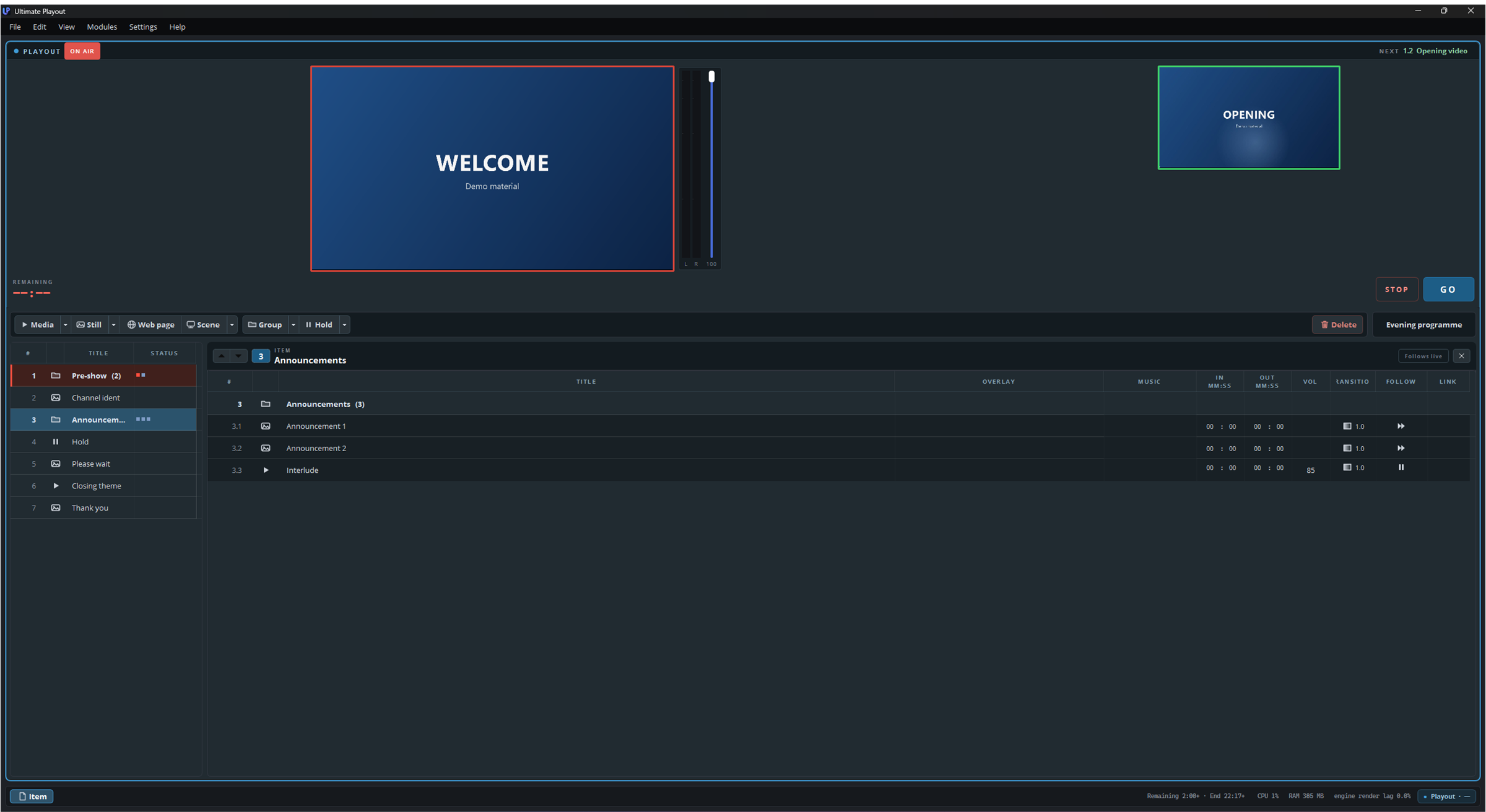
You open it with Item, at the bottom left in the status bar. The width you drag it to is remembered per playout.
5. The status bar
Along the bottom edge.

On the left: Item, which opens the item pane, plus Operate. That last one only appears when a web page is live and can be clicked, typed or scrolled in; it opens that page in a window you can work in. It never opens by itself, so no window grabs focus just after you have gone live.
On the right, the figures: processor, memory and render lag for the whole program, then one block per playout — its output and the number of dropped frames — in that playout’s own colour.
Those blocks are the fastest health check you have. An output that is running says so — a dash means that playout has no output set; frames going missing show up here first.
The keyboard
While the cue list has focus:
| Key | What it does |
|---|---|
| ↑ / ↓ | Move the green marker up and down. Nothing goes on air. |
| Enter or Space | GO — take the armed cue to air. |
| Esc | Stop — this playout to black. |
| P | Pause and resume the active playout. |
| Delete | Remove the selected cue or cues. |
These apply to the active playout: the one whose panel you last clicked.
Alongside these there are assignable hotkeys that work from anywhere in the program, including a set per playout. Those are covered in part 10.