
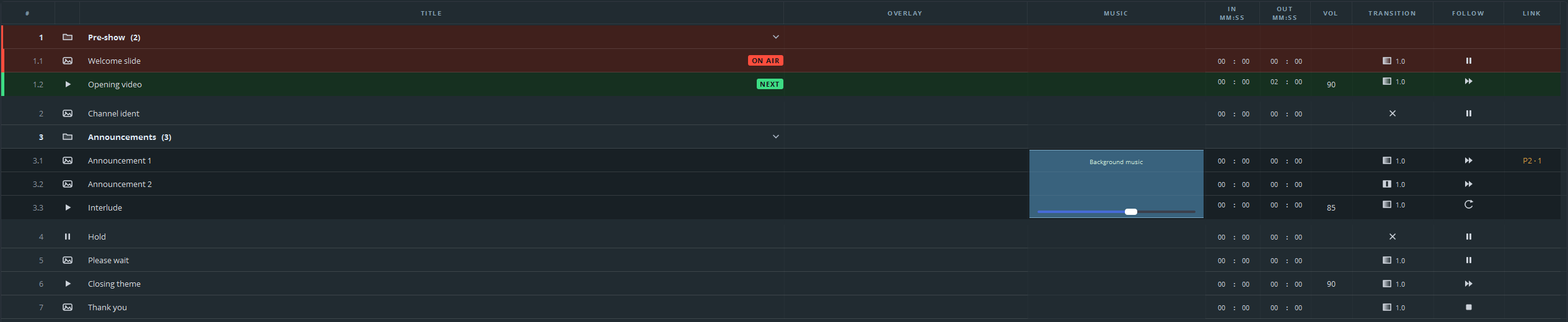
This page is about the table. What each column holds, how to change a value, how selection works, and what the right-click menu offers. The settings behind those columns get a page of their own; this is the map of where everything sits.
The columns
| Column | What it holds | Editable |
|---|---|---|
| # | The number this line has in the running order. | No — it follows the structure |
| (icon) | The kind of cue: media, still, scene, hold, group, web page, jump. | No |
| Title | The name shown in the list. Starts as the file name. | Yes |
| Overlay | Filled in by modules; empty in a base installation. | — |
| Music | The music bed running underneath this stretch of the list. | Yes |
| In / Out | Where in the file this cue starts and stops, mm:ss. | Yes |
| Vol | How loud this cue plays, 0–100 %. | Yes |
| Transition | How the cue comes in: a cross for a cut, otherwise the fade length. | Yes |
| Follow | What happens when the cue ends, as an icon. | Yes |
| Link | A cue on another playout that starts along with this one. | Yes |
Drag a column edge to change its width; the widths are remembered, with a separate set for the narrow list beside the item pane.
Changing a value
Title — double-click the title to put the cursor in it. Type and press Enter.
In, Out and Vol — click the field and type. In and out are minutes and seconds in separate boxes, so you can tab between them.
Transition and Follow — click the cell to get the choices, or set them for a whole selection at once through the right-click menu.
The list writes changes straight into the rundown; there is no separate save step for a value you typed. Saving the file is a different thing — see part 9.
Selecting
Click selects one line. Shift-click extends the selection to a block; Ctrl-click adds and removes single lines.
Selection and arming are two different things that happen to start together: clicking a line also arms it. That matters during a show — see GO, stop and arming.
The right-click menu
What the menu offers depends on what you clicked. There are three of them.
On a single cue:
| Entry | Does |
|---|---|
| Follow action | Pause, Next, Loop or Stop. |
| Transition | Cut, fade or dip, with a duration. |
| Duplicate | A copy of the line, directly beneath it. |
| Delete | With a confirmation, unless you switched that off. |
Depending on the line:
| Entry | Appears | Does |
|---|---|---|
| Put the deleted line back | At the top, after a deletion | Undoes it, like Ctrl+Z. |
| Decode on the graphics card | On a media cue | On by default. Switch it off for a file that comes out green or torn. |
| Open page (log in / click)… | On a web page | Opens the page in a window you can click and type in. |
| Address and zoom… | On a web page | Changes the address or the zoom. |
| Properties… | On a go-to cue or a playlist | Opens the window the line was made with. |
| Split above this cue / Split below this cue | On a line inside a group | Breaks the group in two at that point. |
| Move to archive / Take out of archive | Once the list has an archive folder | Puts the line in the archive, or takes it out again. |
On a selection of several lines, the same menu, with the number of lines behind each entry — Follow action (3) — plus Export selection… and Export selection as bundle….
On a group header:
| Entry | Does |
|---|---|
| Part | Turns this group into a part, and back. |
| Rename… | Give the block a name that reads during a show. |
| Ungroup, keep the contents | Removes the header; the lines stay where they are. |
| Follow action / Transition | Do nothing on the header alone: select the group’s lines and use the menu on the selection. |
| Group icon | Folder, presentation, scene, still, media or hold. |
| Export group… / as bundle… | The block as a file, with or without its media. |
| Duplicate / Delete | The whole group, contents included. |
Everything that can apply to a selection, does. Setting the follow action on thirty lines at once is the difference between a five-minute job and a half-hour one.
The music bed is added by right-clicking in the Music column.