
This page describes tracks: the six channels that sound is mixed into, and the track that your output uses. On a computer that runs only playouts, you set this once. On a computer that does more, this page helps you to keep unwanted sound off your output.
What a track is
There are six audio tracks. By default, every source is on all six, and an output uses one of them.
The program places a playout on the track you choose. The setting therefore determines which track the output uses, and not which sound goes in.
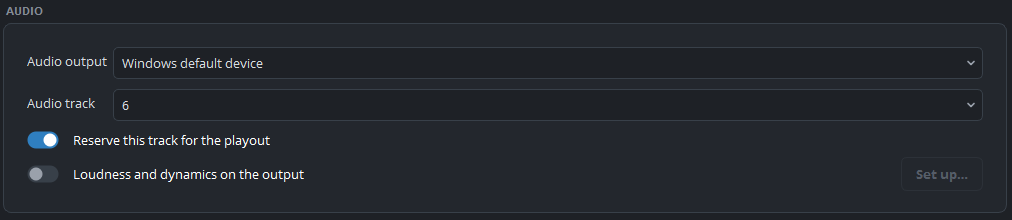
The setting
Set the track for each playout under Settings → Outputs → Audio track.
A DeckLink output carries one track, and so does a stream. Two playouts on one computer normally use two different tracks, so that each output carries the sound of its own playout.
Reserving a track
Reserve this track for the playout removes all other sources from the track.
Without this setting, a source that someone added outside the playout, such as a microphone, a capture card or a media file, is on all six tracks. It is then also on the track of your SDI output, so its sound goes on air under your playout. Nobody in the control room hears it, because the mixing desk monitors the same output.
With this setting on, the card carries only the playout.
On a computer that is used only for playout, leave it on. It has no disadvantages and prevents a whole group of problems.
Switch it off only when a source outside the playout must reach the output as well, and make sure that you know exactly which source that is.
An example
This example has two playouts and two DeckLink ports:
| Playout 1 | Playout 2 | |
|---|---|---|
| Track | 6 | 5 |
| Reserved | yes | yes |
| Result | Port 1 carries only playout 1 | Port 2 carries only playout 2 |
These two tracks are also the defaults. Everything else on the computer is on tracks 1–4 and reaches neither port.
Where the track is also used
Recording and streaming use the same track as the output of the playout, so the recording contains what you sent out.
A playout used as a source in a scene is heard on the playout that shows it, while the scene is on air. A video on playout 1 that is shown in a corner of playout 2 is therefore also heard on playout 2, and the sound stops there when the scene goes off air.
A scene cue works in the same way: a camera in a scene cue is heard only while the scene is on air.
Reserving and your own scenes
Reserving does not remove the sources in your own scene cues from the track. It removes everything else on the computer.
Loudness and dynamics on the output
Loudness and dynamics on the output is under Settings → Outputs, on the playout’s tab, under Audio. You set it for each playout, and it is off by default. It brings the mix of the playout to a target loudness in LUFS, with a gate, a compressor and a limiter.
Set up… beside it opens the Dynamics window, but only while the processing is running. So tick the box, click OK, and open the settings again. The window has the stages Expander / Gate, Leveller, Compressor and Limiter, each with its own switch, and all stages are off at first. It also has a Make-up gain. All controls work while you listen. OK keeps the settings, and Cancel restores the previous settings.
The processing has two costs:
- It needs a second audio track. The program places the processed sound on a separate track. It uses the first track that no playout uses, and removes all other sources from it. If no track is free, the processing stays off.
- It adds a delay of one block, which is 21 ms.