
This page covers picking an output and reading whether it is working. The choice itself is one drop-down; the rest of the page is about the part that matters during a show — knowing at a glance that the picture is really going somewhere.
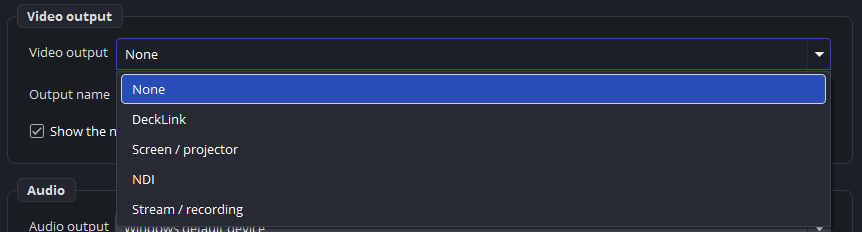
The five kinds
Settings → Outputs, per playout:
| Kind | Goes to |
|---|---|
| None | Nowhere. The playout still works and still previews — useful while preparing. |
| DeckLink | An SDI card, with fill and key if you want it. |
| NDI | Other machines on the network. |
| Screen / projector | A full-screen window on a second display. |
| Stream / recording | A streaming server, a file, or both. |
Each playout has its own; there is no shared output.
Reading the status bar
Every switched-on playout gets a block at the bottom right, in its own colour, saying what its output is doing:
| It says | Meaning |
|---|---|
50 fps · missed 0 (0%) | Running. fps is what the output actually sent in the last second — measured, not the setting. missed is frames this playout could not render in time. |
screen 2 | A projector window on that screen. |
connecting… / recording / off | For a stream output — see part 6. |
not started | It did not come up. Hover for the reason. |
window closed | Somebody closed the projector window. |
Hover a block for the full story. The tooltips are written for the moment something is wrong: they say which device, and what the numbers mean.
A projector window shows no fps. The render lag figure on the left of the bar covers that picture too.
The standby picture
Show the standby picture while nothing is on air — per playout, off by default.
With it on, the output carries the standby picture (black if you have none) for as long as nothing is live on that playout, and fades to the cue when you press GO. The monitor in the window keeps showing whatever you point at, so a cue you click to check stays at the desk instead of going out of the door.
Without it, clicking a cue to see what is in it puts that picture on the SDI line.
Leave it off for an output that feeds a lower third into a mixer. There the picture lies over everything else, and a standby layer would black out that whole image.
When an output does not start
The most common cause is that the device is already in use — two outputs pointed at the same DeckLink port, or another application holding the card. The tooltip says so in as many words.
The program keeps trying: an output that failed to come up is restarted by itself, so a device that was still waking when the program started is picked up a moment later. The pause between attempts rises to two minutes, and it never stops trying. After five failed attempts a window says so, with the reason.
That is also why an output that briefly says not started is not necessarily a problem — look again a few seconds later before you go hunting.
Practical advice
Set the output before the list. An output that has never come up is easy to miss when the preview looks perfect, because the preview does not depend on it.
Check the block, not the picture. The preview shows what the playout renders; the status block shows what left the building. During a show, that block is the one that matters.