
This page covers assignable keys. They differ from the keyboard shortcuts in part 1 in one important way: those work while the cue list has focus, and these work while the program is running, also when another window has the focus — unless that setting was changed in the engine.
Where to set them
Settings → Outputs, at the bottom of each playout’s section, under Shortcuts. Click a field, press the key. Backspace clears it, Esc cancels.
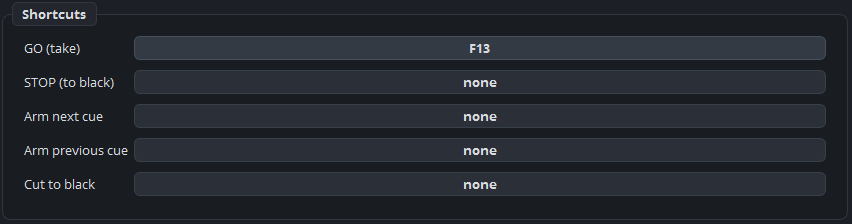
The five actions
| Action | What it does |
|---|---|
| GO (take) | Takes the armed cue to air. |
| STOP (to black) | Stops the playout. |
| Arm next cue | Moves the green marker down. |
| Arm previous cue | Moves it up. |
| Cut to black | Black, immediately. |
A set per playout
Every playout has its own five. A key assigned under a playout drives that line, whatever is active on screen.
On a desk with two lines, assign both sets: one hand always means playout 1 and the other always means playout 2, with no chance of firing the wrong one because you clicked the wrong panel a minute ago.
That is the difference with the keyboard shortcuts from part 1, which always act on whichever playout is active.
Practical advice
Choose keys nothing else uses. F13–F24 are ideal if your keyboard has them, because nothing else in Windows does.
Avoid the space bar and Enter — those already work in the cue list, and assigning them as global keys makes their behaviour depend on where the focus happens to be.
Write them down and tape the list to the desk. The operator on Sunday is not the person who assigned them.