
An overlay output is a playout that sends only the graphics that go over the picture, such as name plates, subtitles and a logo, on a transparent background. You use it to feed the key input of a vision mixer, so that the mixer can place those graphics over its own picture.
What it is
In overlay mode, the playout draws only the output page. This page contains the graphics that are live at that moment, on a transparent background, full screen.
In exchange, it has none of the controls of a normal playout:
- It has no cue list, so there is nothing to start.
- It has no audio.
- You cannot select it, so it cannot be used for something else by mistake.
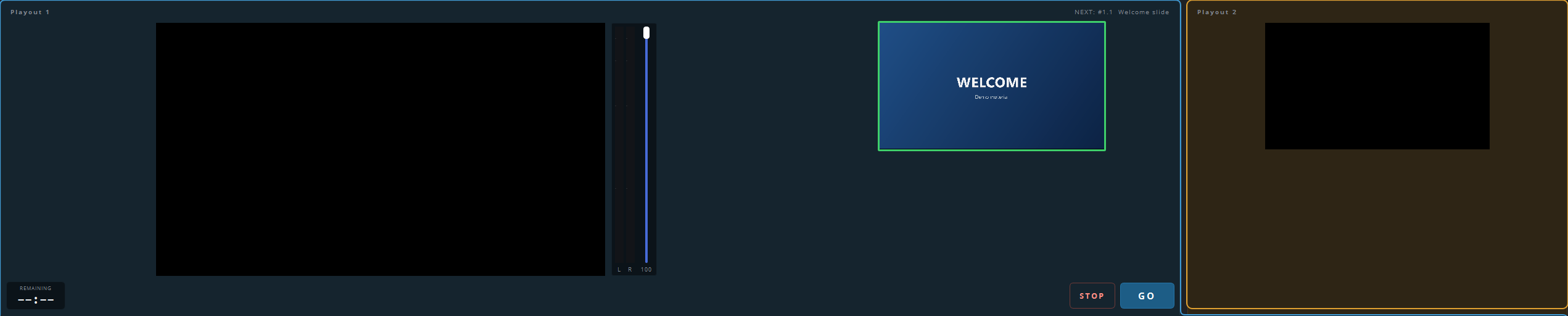
The panel is shown at half size, without the transport bar, the meters and NEXT, and with a border on all sides. That way you can see that the playout has a fixed task and is not just idle.
Switching it on
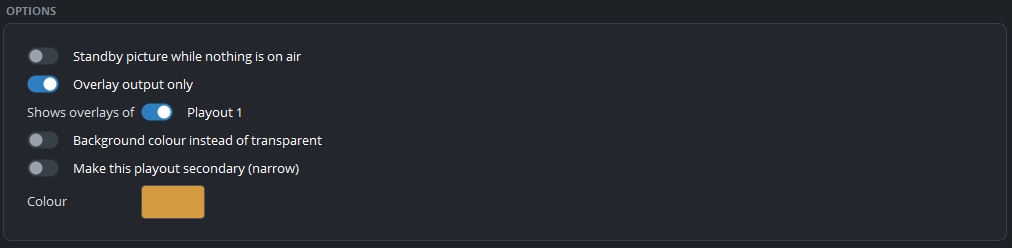
Go to Settings → Outputs, open the playout’s tab, and switch on Overlay output only under Options.
Then give the playout an output that carries the overlay to its destination. This is usually NDI, or an SDI card with fill and key.
Which playouts it shows
Under Shows overlays of, tick the playouts whose graphics belong on this output. The lower thirds, subtitles and logo of a ticked playout then appear only on the overlay output, and no longer in the playout’s own picture. A playout that is not ticked keeps its graphics in its own picture, so it never appears on this output.
With two programme playouts and two mixers, you can set up two overlay outputs and give each one its own playout. If one overlay output carries several playouts and two of them show a lower third at the same time, the most recent one is shown. When it goes, the other one returns.
Transparency and the background
The output page is transparent, but whether the transparency is kept depends on the output:
| Output | Setting |
|---|---|
| NDI, or DeckLink with fill+key | Leave the background off. The alpha channel is sent with the picture |
| A projector, or a card without key | Switch on Background colour instead of transparent, and key on that colour later in the chain |
You can choose the background colour yourself. The usual choice is a green or blue that does not occur in your graphics.
What appears on it
The playout itself puts nothing on this layer. The layer is empty unless a module supplies graphics, so in a base installation the overlay output is a transparent, empty picture.
The usual setup
In the usual setup, one playout runs the programme and supplies the stream. A second playout is set to overlay only and supplies the key input of the mixer. The mixer then places the graphics over its current picture, which can be a camera, a slide or the programme, and the operator does not need to know which picture that is.