
The cue list is a table with one line for each cue and one column for each setting. This page explains what each column contains, how to change a value, how to select lines and what the right-click menu offers. The settings behind the columns have their own pages, so this page mainly shows where everything is.
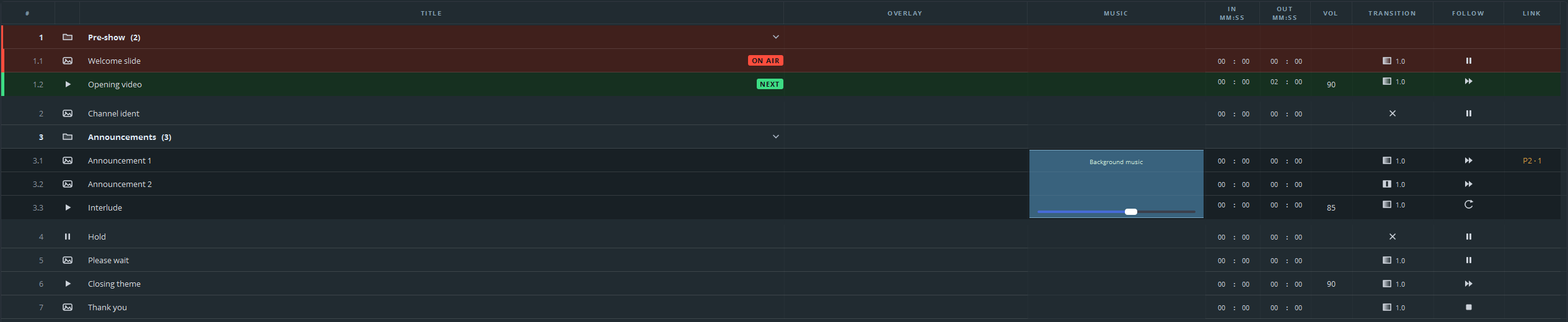
The columns
| Column | What it contains | Can you change it? |
|---|---|---|
| # | The number of the line in the running order. | No, it follows the structure |
| (icon) | The type of cue: media, still, scene, hold, group, web page or jump. | No |
| Title | The name shown in the list. It starts as the file name. | Yes |
| Overlay | Used by modules. Empty in a base installation. | — |
| Music | The music bed that plays under this part of the list. | Yes |
| In / Out | Where in the file the cue starts and stops, in minutes and seconds. | Yes |
| Vol | The volume of the cue, from 0 to 100 %. | Yes |
| Transition | How the cue comes in. A cross means a cut; otherwise the column shows the length of the fade. | Yes |
| Follow | What happens when the cue ends, shown as an icon. | Yes |
| Link | A cue on another playout that starts together with this cue. | Yes |
To change the width of a column, drag its edge. The program remembers the widths, and keeps a separate set for the narrow list beside the item pane.
Changing a value
How you change a value depends on the column:
Title. Double-click the title, type the new name and press Enter.
In, Out and Vol. Click the field and type. The in and out points have separate boxes for minutes and seconds; press Tab to move between them.
Transition and Follow. Click the cell to see the choices. You can also set them for a whole selection in the right-click menu.
The list keeps each change at once, so you do not need to confirm a value that you typed. Saving the list to its file is a separate action, described in part 9.
Selecting
Click a line to select it. Shift-click extends the selection to a block, and Ctrl-click adds or removes a single line.
Selecting and arming are different things, but they start with the same action, because a click on a line also arms that cue. This matters during a show; see GO, stop and arming and the lock in Reordering and editing.
The right-click menu
The menu depends on what you right-click, and there are three versions of it.
On a single cue, the menu contains these commands:
| Command | What it does |
|---|---|
| Start at… | Gives the cue a time of day at which it starts by itself. See Start times and the emergency list. |
| Follow action | Sets Pause, Next, Loop or Stop. |
| Transition | Sets a cut, fade or dip, with a duration. |
| Duplicate | Makes a copy of the line, directly below it. |
| Delete | Deletes the line. The program asks for confirmation, unless you switched this off. |
Some commands appear only on certain lines:
| Command | Where it appears | What it does |
|---|---|---|
| Put the deleted line back | At the top, after a deletion | Restores the line, like Ctrl+Z. |
| Decode on the graphics card | On a media cue | On by default. Switch it off for a file that appears green or distorted. |
| Split… | On a video | Splits the video into two cues; see In and out points. |
| Open page (log in / click)… | On a web page | Opens the page in a window where you can click and type. |
| Address and zoom… | On a web page | Changes the address or the zoom. |
| Properties… | On a go-to cue, a playlist or a cue from a module | Opens the window in which the line was made. |
| Split above this cue / Split below this cue | On a line in a group | Splits the group in two at that line. |
| Move to archive / Take out of archive | When the list has an archive folder | Moves the line to the archive, or takes it out again. |
On a selection of several lines, the menu is the same, but each command shows the number of lines, for example Follow action (3). The menu also contains Export selection… and Export selection as bundle….
On a group heading, the menu contains these commands:
| Command | What it does |
|---|---|
| Part | Turns the group into a part, or back into a group. |
| Emergency list | Makes the group the emergency list; see Start times and the emergency list. |
| Rename… | Gives the block a name that is easy to read during a show. |
| Ungroup, keep the contents | Removes the heading. The lines stay where they are. |
| Follow action / Transition | These do nothing on the heading itself. Select the lines of the group and use the menu on that selection. |
| Group icon | Sets the icon: folder, presentation, scene, still, media or hold. |
| Export group… / as bundle… | Saves the block as a file, with or without its media. |
| Duplicate / Delete | Duplicates or deletes the whole group, with its contents. |
Every command that can apply to a selection applies to the whole selection. Setting the follow action for thirty lines at once therefore saves a lot of time.
The Music column has a menu of its own: to add a music bed, right-click in the Music column.