
During a show, you arm the next cue and press GO, and the colours in the list tell you where you are. This page explains how to start a cue, what the colours and the panel show, and what to do when something has to change while the show runs. It is short on purpose, because during a broadcast your attention belongs on the screen.
Arm, then GO
You run a show in two steps, always in the same order.
- Arm the cue that you want to play next. Click the cue, or move to it with the arrow keys. The cue turns green, shows the
NEXTlabel and appears in the next-cue picture. Arming a cue does not change what is on air. - Press GO to put the cue on air. You can use the GO button, the space bar or the Enter key. The cue turns red, and the program arms the next cue by itself.
Because the program arms the next cue for you, a simple show needs only one GO for each cue. The rest of this page explains how to follow what is happening while you work.
What arming does
When you arm a cue, the program prepares it. Scenes and web pages are already loaded when you press GO, so the picture appears at once, without a moment of black.
You can also use arming to look ahead during the show. When you move the green line up and down the list with the arrow keys, nothing changes on air and the red line stays where it is. When you have seen what is coming, move back and press GO.
Reading the list
A cue is always in one of four states, and each state has its own colour and label:
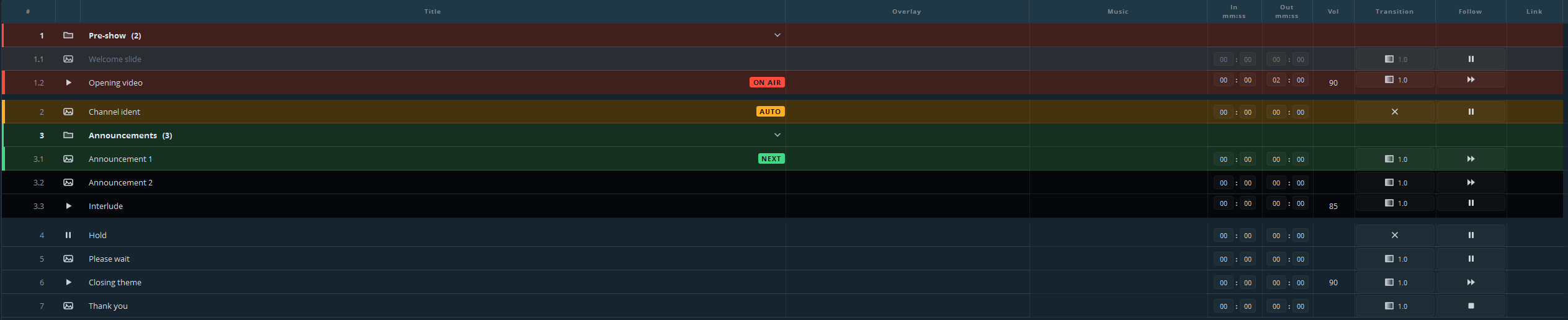
| Colour | Label | Meaning |
|---|---|---|
| Red | ON AIR | The cue is on air. |
| Amber | AUTO | The cue starts by itself when the cue on air ends. |
| Green | NEXT | The cue is armed, and the next GO starts it. |
| Grey | — | The cue has already been played. |
Amber is the most useful colour to learn, because it shows what will happen without you, and therefore also when you are needed again. In the picture above, Channel ident follows the clip on air by itself, and the operator has already armed the Announcements group further down.
Amber appears only where a cue ends by itself. A still without a duration waits for GO, whatever its follow action is, so it never starts an automatic sequence.
Cues in the archive are also grey. They never play, and GO skips them.
Reading the panel

Above the list, each playout shows the following:
ON AIRbeside the name of the playout, and a red border around the preview. Both mean that the playout is broadcasting.NEXTon the right of the heading, followed by the cue that the next GO starts. The next-cue picture beside the preview shows that cue.- The countdown on the transport bar, which shows the time left in the current cue. Towards the end it turns amber and then red, at times that you can set yourself.
- The status bar at the bottom of the window, which shows the output of each playout and the number of dropped frames.
During a cue
While a cue plays, you control it with the transport bar:
| Play / pause, or the P key | Pauses the picture and resumes it. |
| Restart | Starts the cue again from the beginning. |
| Stop media | Stops the media, so that the picture goes to black. |
| Timeline | Drag it to move to another position in the cue. |
Stopping
Press STOP, or the Esc key, to end the cue and take the playout to black.
Stop and pause are different. Stop ends the cue, while pause only holds the picture so that you can continue afterwards. Use pause when you want the picture to stay on screen while you deal with a problem.
Changes during the show
A show rarely runs exactly as planned, and you can make the following changes while it runs.
To skip a cue, arm the cue after it and press GO. The numbering does not change.
To repeat a cue, arm it again and press GO.
To add something that is not in the list, drag the file into the list. This does not affect what is on air, so you can do it during the show. Then arm the new cue.
To take a line out without deleting it, right-click the line and choose Move to archive. This is possible when the list has an archive folder, which you add with the arrow beside Hold → Archive. The line moves to the folder at the top of the list and keeps its settings, and GO skips it from then on. A cue that is on air stops at once when you move it to the archive.
To click on a web page that is on air, use the Operate button in the status bar. It opens the page in a window where you can click, type and scroll. The button appears only when there is a page that you can operate.
More than one playout
Each playout has its own STOP and GO buttons on its own panel, and its own list.
Click a panel to make that playout active. The cue list below then shows the list of that playout, and the keyboard also controls that playout. The space bar therefore starts a cue on the playout whose panel you clicked last, so when you work with two playouts, check which panel is highlighted before you use the keyboard.
Playouts work independently unless you link them. You can link a cue to a cue on another playout, so that one GO starts both. You set this in the Link column of the cue, as part 4 describes.
If something goes wrong
| What you see | What to do |
|---|---|
| Black where there should be a picture | Check in the status bar whether the output is running. Then check whether the cue is still on air, or whether a follow action has ended it. |
| A cue does not start | Look for a warning mark on the line. The file has probably been moved. |
| The picture is right, but the stream does not work | The stream has its own status, separate from the cue list. Check the block of the stream in the status bar. |
| You have lost your place in the list | Look for the red line. Red is what is on air, and green is only the cue that you have prepared. |
Part 14 contains all the solutions. During a show, remember two things: Esc gives you black, and red is what the audience sees.