
The Modules page decides which functions the program has. It sets the cue types in the toolbar, and it lists every installed module, each with an Enable switch. Open it with Modules → Manage modules….
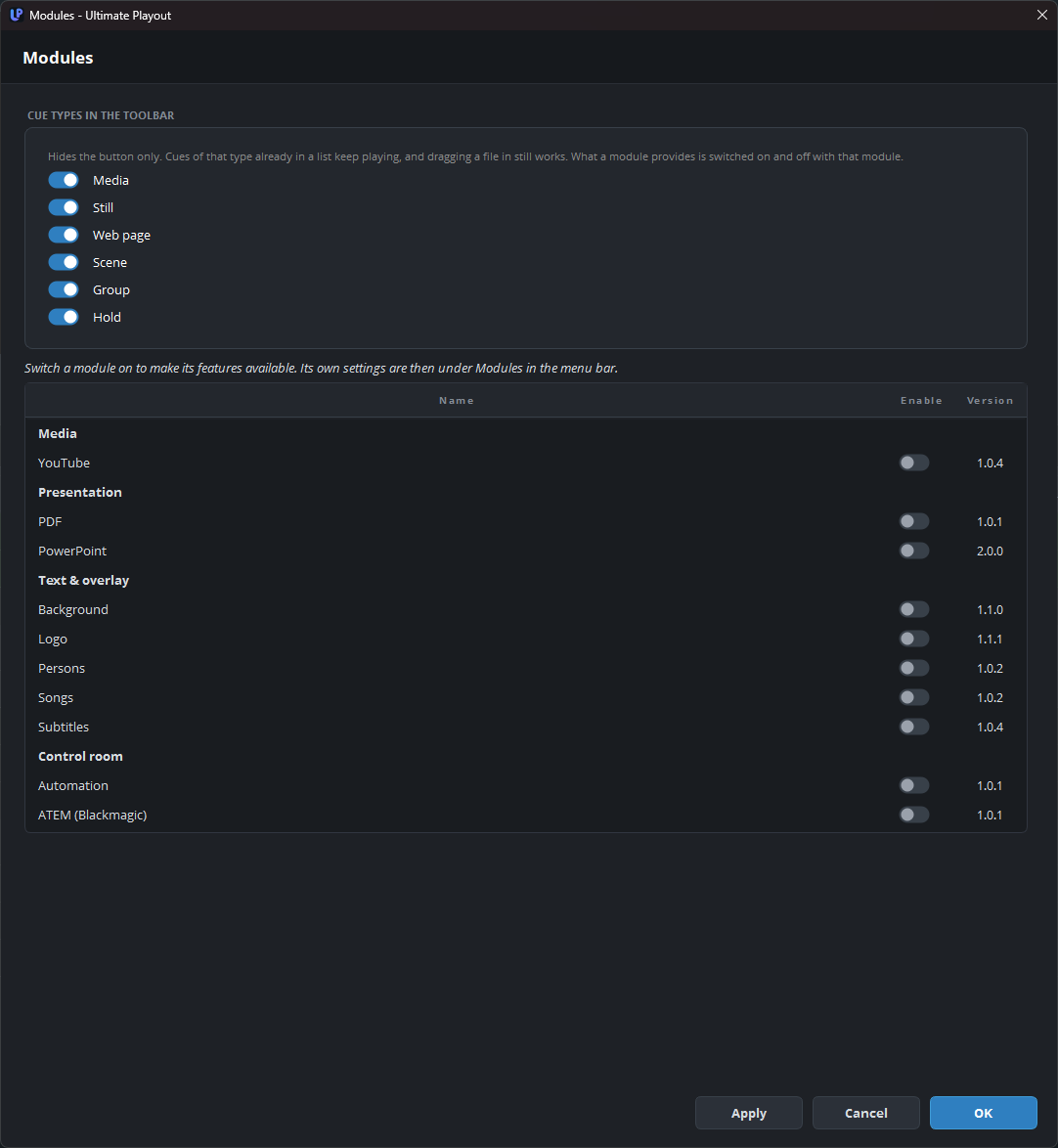
Cue types in the toolbar
This group is always at the top of the page, even when there are no modules. Clear the box for Media, Still, Web page, Scene, Group or Hold to hide the button of that type. This hides only the button, so existing cues of that type still play, and you can still drag a file into the list.
The modules
The modules are grouped by category (Media, Presentation, Text & overlay, Control room). For each module, the page shows its Name, an Enable box and its Version. A module that is on has its own line under Modules in the menu bar, which opens the settings of that module. If no modules are installed, the page shows No modules installed.
A module that is on adds its buttons, cue types, windows and designs to the interface. When a module is off, they are gone completely: not greyed out, but not there at all. Each module has its own part of this manual.
Switching a module on or off
Tick or clear Enable and press Apply or OK.
Switching a module off does not delete anything. The module stays installed and the program keeps its settings, so when you switch the module on again, everything is as before.
Switching a module off does affect your lists. A list with cues from a module loses what the module showed. The cues stay in the list, but they show nothing while the module is off.
When the modules cannot start
Modules run in a separate process. If that process cannot start, a window with the title Modules could not start shows the cause:
| The message begins with | Usual meaning |
|---|---|
| Windows refused to start upmod-runner.exe | Antivirus software, or a file that was blocked after it was copied |
| upmod-runner.exe is missing | The installation is incomplete. Reinstall the program |
| upmod-runner.exe started but did not respond | Antivirus software is scanning the program |
| upmod-runner.exe did not start in time | Antivirus software is holding the file. The program continued without modules |
| The installation is incomplete | The program and the modules are from different versions. Reinstall the program |
If antivirus software is the cause, the message names the folder to add to its exclusions.
None of these problems stops the program. The cue list and the outputs continue to work, and you lose only what the modules provided.
A single module that cannot load stays in the list with its file name. You cannot tick its box, and its tooltip shows the reason.
Which modules you have
Your licence key decides which modules belong to your installation, both during the installation and later, when you use Check for module updates…. See your licence key.
Updating the modules
Check for module updates… on the Info page (Help → About this program…) shows which modules can be updated, and installs the updates on request. The modules stop for a moment during the update, so do this after a service and never during one.