
The window of Ultimate Playout consists of a menu bar and three bands: the monitor panel, the work area and the status bar. This page names every part of the window. The rest of the manual uses these names, so when a later page mentions “the transport bar” or “the item pane”, this is where you find out what it is. Read the page once now, and come back to it when you do not recognise a term.
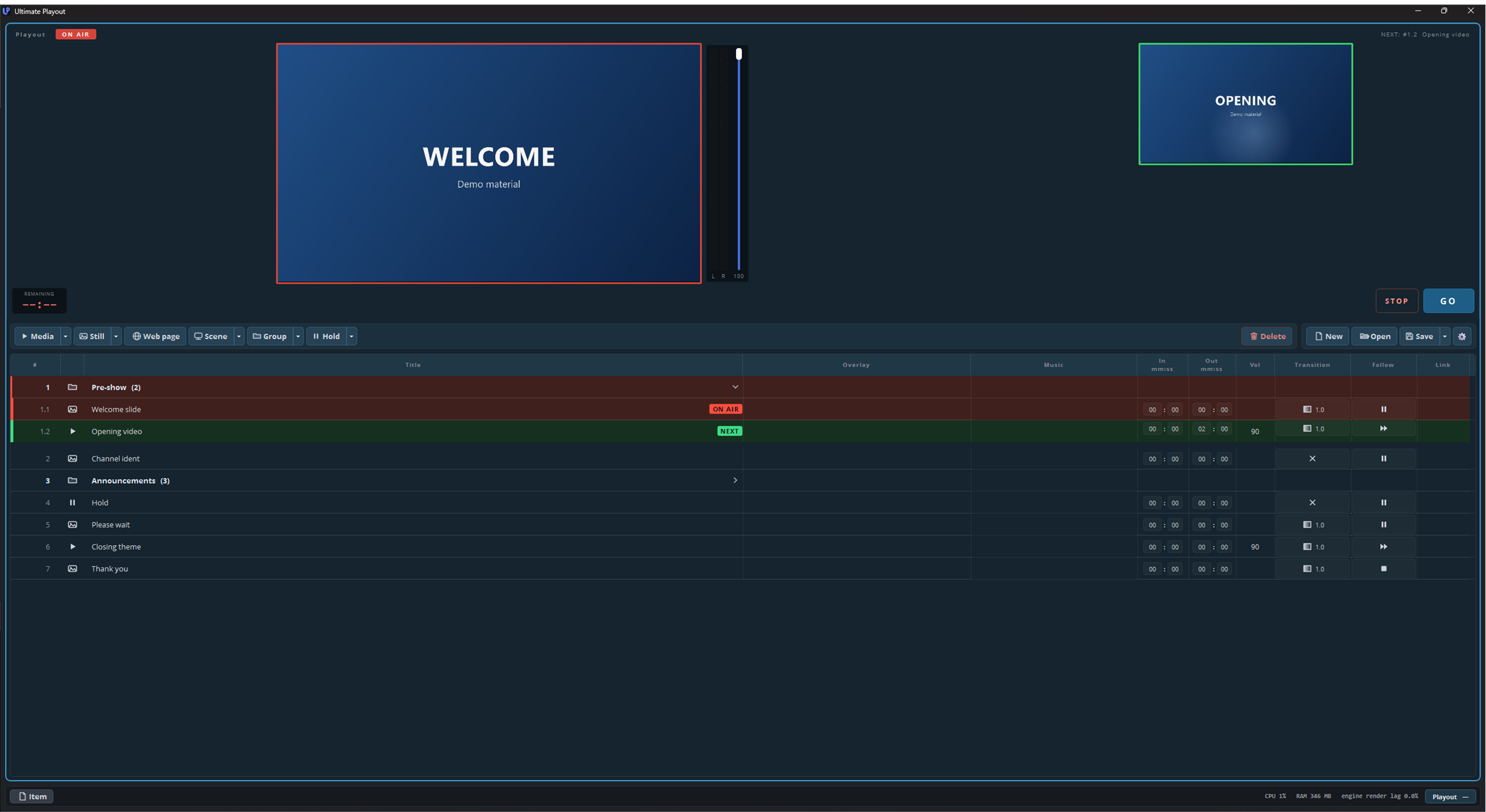
The menu bar and the three bands
The menu bar runs along the top of the window. Below it, the window has three horizontal bands, from top to bottom:
- The monitor panel. Each playout has one panel, with the preview, the meters and the transport controls.
- The work area. This contains the toolbar and the cue list. When you open the item pane, it appears beside the list.
- The status bar. It has buttons on the left, and figures about the list, the computer and the outputs on the right.
You can drag the line between the monitor panel and the work area to give more room to the preview or to the list.
The menu bar
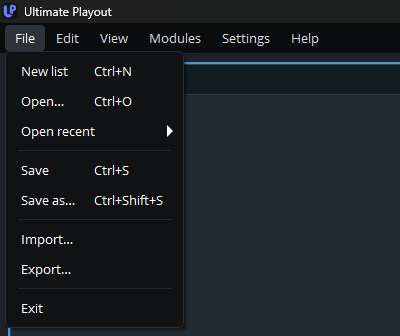
Every part of the program has one place in the menu bar. The toolbar above the cue list only adds cues; everything else is in these menus:
| Menu | What it contains |
|---|---|
| File | New list, Open…, Open recent, Save, Save as…, Import…, Export… and Exit. These commands apply to the list of the active playout. |
| Edit | Undo, Cut, Copy, Paste, Duplicate, Delete, Find…, Properties… and Lock the list. These commands apply to the selected cues, or to the cue that the cursor is on. |
| View | Full screen on monitor, Show the next cue beside the picture, and the width of the panels when you use more than one playout. |
| Design | One line for each part that you can design, such as Song pages… and Lower thirds…. A line appears only while the module that supplies the part is switched on, and the menu itself appears only when it contains a line. |
| Modules | One line for each module that is switched on. Each line opens a window with the settings of that module only. Manage modules… at the bottom opens the page where you switch modules on and off. |
| Settings | General…, Cue list…, Outputs… and Performance…. Each line opens that page in a window of its own. |
| Help | User guide, Keyboard shortcuts, Check for updates… and About this program…. |
The right-click menus of a cue and of a preview contain many of the same commands, so you can work in the way that suits you.
1. The monitor panel
Each playout has its own panel, and the panels stand side by side. With one playout, the panel uses the full width; with several playouts, they share it.

The panel has the following parts.
The heading. On the left, the heading shows Playout, or Playout 1, Playout 2 and so on when you use more than one playout. An ON AIR label appears beside the name while something is playing. The label does not replace the name, so you can always see which playout it is. On the right, the heading shows NEXT and the cue that goes on air at the next GO.
The preview. The preview shows only what is on air, so arming a cue does not change it. When nothing is on air, the preview is black or shows the hold image. A VU column beside the picture shows the left and right audio levels, and a red border surrounds the preview while something is on air.
The next-cue picture. This picture stands beside the preview, at half its size, and shows the armed cue. The cue is loaded but not playing, so a clip shows its first frame. To hide the picture, right-click the panel and clear Show the next cue beside the picture. The same setting is under Settings → Outputs, on the tab of the playout.
You can change the size of the next-cue picture. When you point at the picture, a grip appears in its bottom-right corner. Drag the grip to make the picture smaller or larger, from 30% up to the size of the preview. The new size applies to the next-cue picture of every playout. Double-click the grip to return to half the size of the preview.
The master fader. The master fader of the playout stands beside the picture.
The transport bar. This bar runs along the bottom of the panel:

From left to right, it contains these controls:
| Control | What it does |
|---|---|
| Countdown | Under REMAINING, the time left in the current cue, to a tenth of a second. Towards the end it turns amber and then red, at times that you can set. |
| Play / pause | Pauses the picture and resumes it. |
| Restart | Starts the cue again from the beginning. |
| Stop media | Stops the media, so that the picture goes to black. |
| Timeline | Shows the position in the cue. Drag it to move to another position. The figures on the right show the elapsed and the total time. |
| STREAM / REC | Start and stop streaming and recording. These buttons appear only when the output of the playout is a stream. |
| STOP | Stops the playout, so that the picture goes to black. |
| GO | Puts the armed cue of this playout on air. |
Click anywhere on a panel to make that playout active. The cue list below then shows the list of that playout. You can click any part of the panel, including the picture.
2. The toolbar
The toolbar stands above the cue list and has two halves.

The buttons on the left add a line to the list. Several of them have a small arrow with more choices:
| Button | Adds |
|---|---|
| Media | Video and audio files. |
| Still | Stills. |
| Web page | A page to show, for example a schedule, a counter or a dashboard. |
| Scene | A scene as a cue. |
| Group | A container for a block of cues. The arrow also contains Part and Load group. |
| Hold | A waiting point that stays until you continue. The arrow contains Archive and Go to. These two lines never play: the archive stores cues, and a go-to line refers to another cue. |
Buttons from modules appear in the same row. If your toolbar has buttons that are not in this table, they are described in the part of the manual for that module.
Delete, on the right of the toolbar, removes the selected cues.
The name of the list is shown on the far right. This is the name of the file to which the list of the active playout belongs, or Untitled list when the list has not been saved yet. An asterisk after the name means that the list has changes that are not saved yet. Point at the name to see the full path of the file.
When the list is locked, a Locked button appears beside the name. Click it to unlock the list. Part 2 explains what the lock does.
When you choose Edit → Find…, the search field appears in the same place.
3. The cue list
The cue list takes up most of the window, with one line for each cue.

| Column | What it contains |
|---|---|
| # | The number. It follows the structure of the list and updates by itself. |
| (icon) | The type of cue. |
| Title | The name. Double-click it to rename the cue. |
| Overlay | Used by modules. Empty in a base installation. |
| Music | The music bed that plays under this part of the list. |
| In / Out | The start and end point, in minutes and seconds. |
| Vol | The volume of the cue. |
| Transition | How the cue comes in. A cross means a hard cut; otherwise the column shows the length of the fade in seconds. |
| Follow | What happens when the cue ends. The icon shows pause, next, repeat or stop. |
| Link | A cue on another playout that starts together with this cue. |
A group is one line, with the number of items after its name and a chevron to open and close it. When you click a line, you arm that cue: it turns green, gets the NEXT label, and the next GO starts it.
When you right-click a line, a menu opens with the actions for that line. You can duplicate or delete the line, set the follow action or transition for a whole selection, move the line to the archive, or export it. To rename a cue, double-click its title. The menu of a group heading also contains Rename….
Part 2 — the cue list describes all of this in detail. For now, it is enough to know that the cue list contains the show, and that its columns hold the settings of each cue.
4. The item pane
The item pane opens beside the cue list and shows what is inside the selected line: the steps of a group, the items of a playlist, or the music bed under the line. While the item pane is open, the cue list shows only the number, the title and the status, so that both fit.
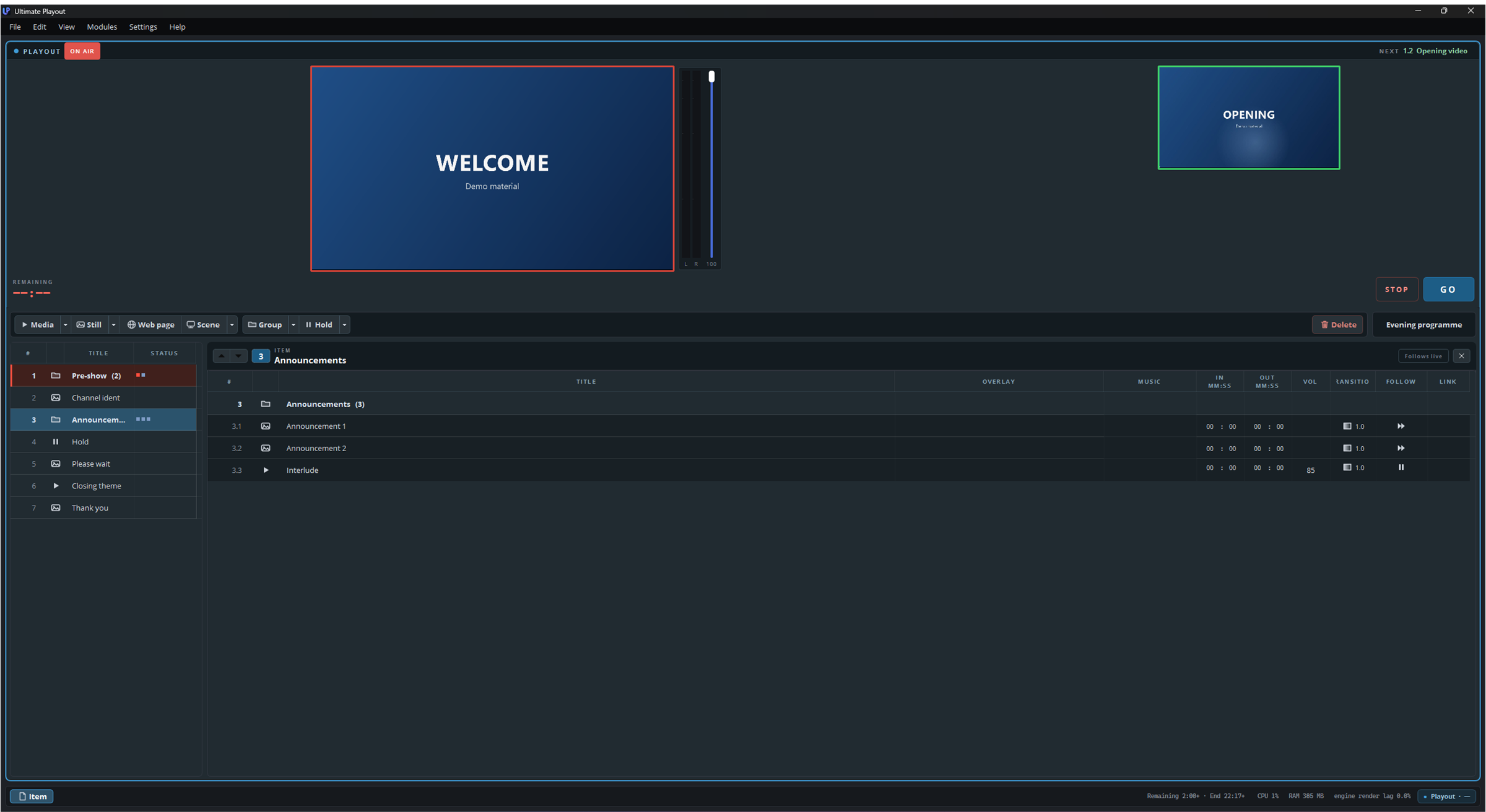
To open the item pane, click Item at the bottom left of the status bar. The program remembers the width of the pane for each playout.
5. The status bar
The status bar runs along the bottom of the window.

The left side contains Item, which opens the item pane, and Operate. Operate appears only when a web page on air accepts clicks, text or scrolling, and it opens that page in a window where you can use it. The window never opens by itself, so it cannot take the focus just after you go on air.
The right side contains the figures. It starts with the rest of the list, for example Remaining 12:30 · End 21:45: the time that the list still takes, counted from the cue on air, and the time of day at which it ends. Only videos and stills with a duration have a length. A + after the times, as in Remaining 12:30+ · End 21:45+, means that the rest of the list also contains cues that wait for GO or have no length, so the list will take longer. Point at the line to see this explanation in the program.
After that, the status bar shows the processor, the memory and the render lag of the whole program, and then one block for each playout, in the colour of that playout, with its output and the number of dropped frames.
These blocks are the quickest way to check that everything works. A running output shows its name, a dash means that the playout has no output, and dropped frames appear here before you notice them anywhere else.
The keyboard
These keys work when the cue list has the focus:
| Key | What it does |
|---|---|
| ↑ / ↓ | Moves the green line up and down. Nothing goes on air. |
| Enter or Space | GO: puts the armed cue on air. |
| Esc | Stop: takes the playout to black. |
| P | Pauses and resumes the active playout. |
| Delete | Removes the selected cue or cues. |
| Ctrl+Z | Puts the last deleted cue or cues back. |
| Ctrl+X, Ctrl+C, Ctrl+V | Cut, copy and paste cues. |
| Ctrl+F | Finds a cue by its title. |
| Ctrl+N, Ctrl+O, Ctrl+S | Create a new list, open a list, save the list. |
| F1 | Opens this manual. |
Help → Keyboard shortcuts shows the same table in the program.
The keys apply to the active playout, which is the playout whose panel you clicked last.
You can also assign your own hotkeys. They work anywhere in the program, and each playout has its own set. Part 10 describes them.