
This page is about the hour the show is actually running. How to arm and fire a cue, what every colour in the list means, what the panel tells you at a glance, and what to reach for when something needs to change mid-show. It is short on purpose: during a broadcast you should be reading the screen, not the manual.
Arm, then GO
Two steps, always in this order.
Arm the cue you want next: click it, or walk to it with the arrow keys. It turns green and takes the NEXT badge. Nothing has happened on screen — arming is free.
GO takes it to air. The GO button, the space bar or the Enter key. The cue turns red, and the next one arms itself automatically.
That is the whole loop. Everything else on this page is about seeing what is going on while you do it.
Why arming is separate
Because arming does work in advance. The armed cue is warmed up: scenes and web pages are already loaded at the moment you press GO, so you get picture immediately instead of a black dip while something starts up.
It also means you can look ahead during the show. Walking the green marker up and down the list with the arrow keys changes nothing on air — the red line stays exactly where it is. Look ahead, come back, then fire.
Reading the list
Four states, each with its own colour and its own badge:
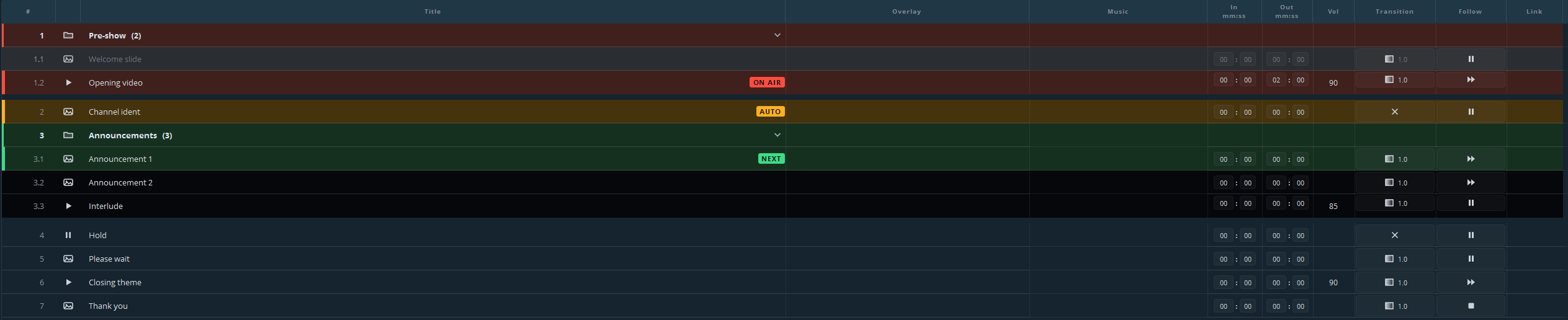
| Colour | Badge | Meaning |
|---|---|---|
| Red | ON AIR | On air right now. |
| Amber | AUTO | Will start by itself when the cue on air runs out. |
| Green | NEXT | Armed — this is what the next GO fires. |
| Grey | — | Already played: it lies behind the cue on air. |
The amber is the one to learn. It shows you what happens without you, and therefore where you are needed again. In the picture above, the audio cue on air hands over to Channel ident by itself, while the operator has already armed the Announcements group further down.
Amber only appears where a cue really will run out on its own. A still with no duration set waits for a GO however its follow action is set, so it never starts an automatic chain.
Cues in the archive are also greyed out. They never play, and GO and automatic follow-on skip over them.
Reading the panel

Above the list, per playout:
ON AIRbeside the playout name, and a red border round the preview — this line is broadcasting.NEXT:on the right of the heading: what the next GO will fire.- The countdown, on the transport bar: time left on what is playing. It goes amber and then red as the end approaches, at thresholds you set yourself. Two glances tell you whether to reach for the button.
- The status bar at the bottom of the window: the output per playout and any dropped frames.
During a cue
The transport bar acts on what is playing right now:
| Play / pause, or the P key | Hold the picture where it is, and let it run again. |
| Restart | Back to the start of this cue. |
| Stop media | Stop the media itself, to black. |
| Timeline | Drag to scrub through the cue. |
Stopping
STOP, or the Esc key, takes that playout to black and ends the cue.
Stop is not pause. Stop ends what was playing; pause holds it. If you want the picture to stay while you sort something out, pause.
Things that change mid-show
Something has to be skipped. Arm the cue after it and press GO. The list does not care that you jumped; the numbering does not move.
Something has to be repeated. Arm it again and press GO.
Something is not in the list at all. Drag the file in while the show runs — dropping onto the list does not disturb what is on air. Then arm it.
A line has to go, but not really. Right-click → move to archive. It goes to the folder at the top of the list, keeps everything about itself, and is skipped by GO and by automatic follow-on. A cue that was on air and lands in the archive stops at once.
A web page needs a click. The Operate button in the status bar opens the live page in a window you can click, type and scroll in. It only appears when there is something to operate.
More than one playout
Every playout has its own STOP and GO on its own panel, and fires its own list.
Click a panel to make that playout the active one. The cue list underneath switches to its list, and the keyboard follows it. That last part is worth saying out loud: the space bar fires the playout whose panel you last clicked. On a two-playout setup, glance at which panel is highlighted before you use the keyboard.
Nothing crosses between playouts unless you told it to. A cue can be linked to a cue on another playout, and then one GO starts both — that is a setting on the cue, in the Link column, and it is covered in part 4.
If something goes wrong
| What you see | What to do |
|---|---|
| Black where there should be picture | Check the status bar: is the output running? Then check whether the cue is still on air, or whether a follow action already ended it. |
| A cue will not start | Look for the warning mark on the line — the file it points at has probably moved. |
| The picture is fine, the stream is not | The stream has its own state, separate from the cue list. Its block in the status bar tells you where it stands. |
| Everything is fine but you have lost your place | Look for the red line, not the green one. Red is the truth; green is only a plan. |
The full troubleshooting section is part 14. During a show, the two things worth remembering are: Esc gives you black, and red is what the audience sees.
Where to go next
You have finished part 1. Part 2 covers the cue list in full — numbering, follow actions, transitions, groups, music beds and everything else the columns do.