
This page defines the vocabulary. Three words carry the whole program — cue, playout and module — and a handful of smaller terms appear on screen without ever being explained there. Read this once; after that you can follow any other page without guessing what a word means. Come back to it whenever a later page uses a term you are unsure about.
The three big ones
| Term | What it is |
|---|---|
| Cue | One line in the rundown: a clip, a still, a scene, a web page. With its own in and out point, volume, transition and follow action. |
| Playout | One complete broadcast line: its own cue list, its own preview, its own audio, its own output. You can run up to four at once. |
| Module | A separately supplied extension that adds subjects — songs, presentations, switcher control. What is not installed does not exist in the interface. |
Cue
A cue is the unit everything else attaches to. It is not “a file” — a cue points at a file, or at a scene, or at an address, and adds to it everything the program needs to know to play it: where it starts, where it stops, how loud it is, how it comes in, and what happens when it ends.
That is why the same file can appear three times in one list as three cues, each trimmed differently, and why replacing a file does not cost you the settings around it.
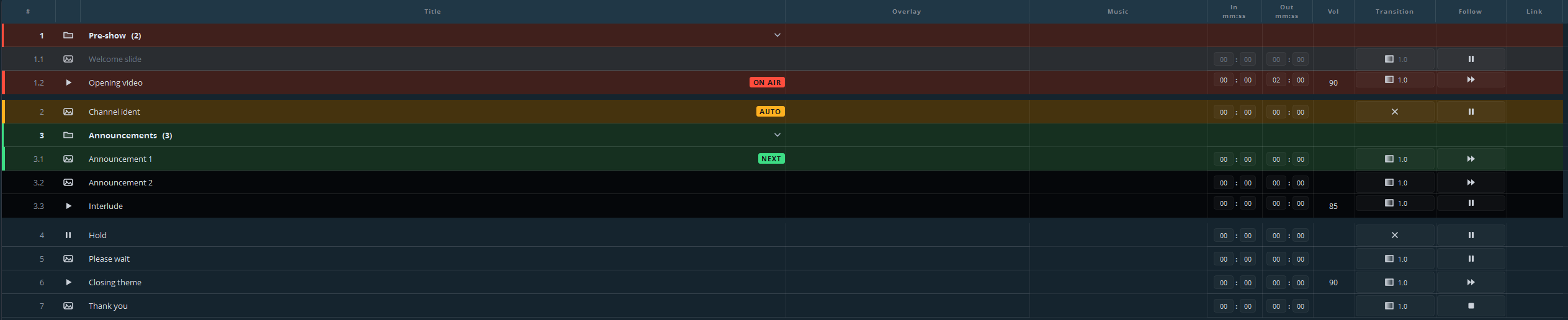
Cues sit in a numbered order that follows the structure of the list: 1, 2,
3 at the top level, 3.1 and 3.2 inside a group, 3.1.1 one level deeper.
Move something and the list renumbers itself.
Playout
A playout is a complete, independent broadcast line. Each one has its own cue list, preview, transport controls, audio, master fader and output. A playout is what a viewer would call “the channel”.

Most installations use one. You use more when there is genuinely more than one screen with different content — the stream and the hall screen, for example, or a main output and a permanently running side display. All of them are operated from the same window by the same person.
Module
A module is an extension that adds a subject the base program does not have. Modules are supplied separately and run in their own process, alongside the program rather than inside it; switching one off removes its buttons, its windows and its designs from the interface entirely.
That an installation has a particular module says nothing about the size of your licence — it says which components were installed. Two copies of Ultimate Playout can therefore look genuinely different, and a colleague’s screenshot may show a button you do not have.
This is worth repeating because it decides what you will read where: this documentation site covers the base program only. Each module has its own documentation.
Words you will meet on screen
| Term | Meaning |
|---|---|
| Armed | The cue that will go to air on the next GO. Marked green, with a NEXT badge. Nothing of it is visible yet. |
| On air / live | The cue that is playing out right now. Marked red, with an ON AIR badge and a red border round the preview. |
| Auto | A cue that will start by itself when the one on air runs out. Marked amber, with an AUTO badge. |
| GO | Take the armed cue to air. The button, the space bar and the Enter key all do this. |
| Follow action | What happens when a cue ends: hold on the last frame, go on to the next one, repeat, or stop. |
| Transition | How a cue comes in: a hard cut, or a fade of a set length. |
| In / Out | The start and end point inside a file. Trimming, without touching the file itself. |
| Group | A container for a block of cues, up to two levels deep. Collapses to one line. |
| Preview | The picture in the monitor panel: what is on air, or — with nothing on air — the still or scene you armed. |
| Output | Where the picture of a playout goes: an SDI card, NDI, a second screen, a stream, or nowhere. |
| Canvas | The size and frame rate everything is built in, shared by all playouts. |
A note on two words that sound alike
Armed is not live. Arming costs nothing and changes nothing on screen; you can move the green marker up and down through the list during a broadcast to look ahead, and the picture on air does not flinch. Only GO puts something on air.
Stop is not pause. Stop takes the playout to black and ends the cue. Pause holds the picture where it is. They are different buttons for a reason — see Going live.
Where to go next
Installing — what the setup does and what it asks you.