
This page covers running two, three or four lines from one window. What each one has of its own, how they share the screen, and the one thing to keep an eye on: which of them your keyboard is aimed at.
Adding one
Settings → Playouts → Number of playouts, from one to four.
A playout you switch on starts empty: no list, no output, nothing live. Give it an output and a name and it is ready.
What each playout has of its own
| Its own | Shared with the others |
|---|---|
| Cue list | The canvas size and frame rate |
| Preview and VU meters | The program’s settings |
| Transport, STOP and GO | Your scenes |
| Master fader and audio track | The machine’s processor and card |
| Output |
Two lines therefore run genuinely independently: a GO on one does nothing to the other, unless you link the cues yourself.
The panels
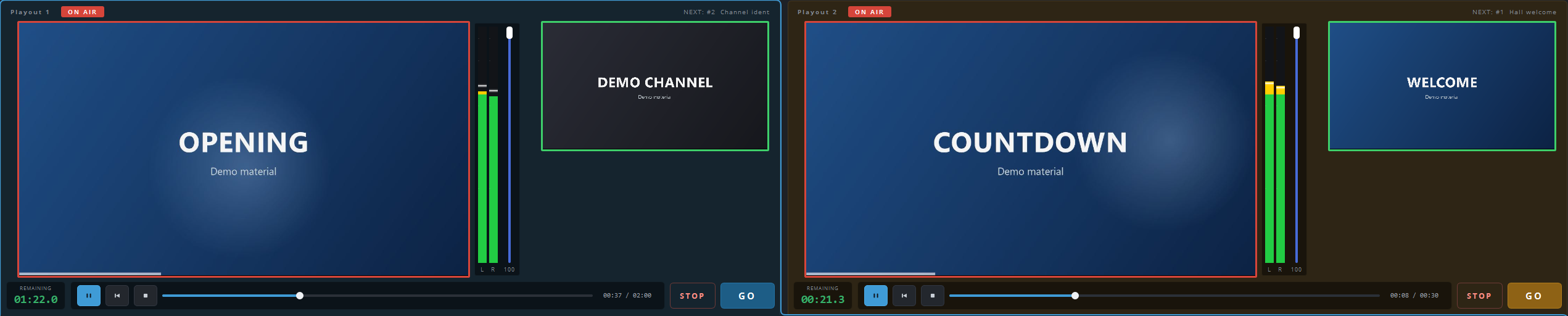
The playouts sit side by side above the work area, each with its own picture, meters and transport bar. Underneath them is one cue list — the list of whichever playout is active.
Clicking a panel makes that playout active, and the list below switches to its rundown. The whole panel is the target, picture included.
Right-click a panel for what you can do with it:
| Entry | What it does |
|---|---|
| Scene filters… | Filters over everything this playout puts out. |
| Full screen on monitor | Send this playout’s picture to a screen, full size. |
| Divide panels equally / Make this playout secondary (narrow) | Switches the widths: either both the same, or this one down to about a third. |
That last entry shows whichever of the two you are not currently in. The narrow setting is the normal arrangement when one line carries the show and the other only feeds a side screen — you want the picture you are actually cutting to be the big one.
Which playout is your keyboard talking to?
The active one — the panel you last clicked. The space bar, Esc, the arrow keys and P all apply to it.
This is the one thing that catches people out on a two-playout desk, and it catches them out exactly once. Before you use the keyboard, glance at which panel is highlighted; when in doubt, use the STOP and GO buttons on the panel itself, which are never ambiguous.
Alongside these there are assignable hotkeys with a set per playout, which work regardless of what is active — see part 10. That is the way to build a desk where one hand always means playout 1 and the other always means playout 2.
What it costs the machine
Each playout renders and encodes its own picture. Two lines is roughly twice the work of one, and the status bar is where you see whether the machine is keeping up: dropped frames appear per playout, in that playout’s own colour.
If a machine struggles, the first thing to look at is not the number of playouts but what is on them — fades render two cues at once, and a web page can cost more than a clip.