
You link a folder by choosing it under Group → Linked folder, and the program adds it to the end of the list as a part. From then on, the part follows the folder until you remove it.
Switching the module on
Choose Modules → Manage modules… in the menu bar. Under Media, tick Enable beside Linked folder and press Apply. You do not need to restart the program.
| Where | What appears |
|---|---|
| The arrow beside Group | Linked folder, with its own arrow |
| The menu bar | Modules → Linked folder…, with a folder for each playout |
| The cue list | The icon of a linked folder on each part that follows a folder |
The module needs Ultimate Playout 1.2.1 or later, and it works on Windows and on Linux.
Adding a folder
Click the arrow beside Group and point at Linked folder. Then choose a folder from the list, or choose Choose folder… to select another one.
The program adds the folder as a part at the end of the list of the playout that you are working in, and fills it at once. A folder that you choose is added to the list under the arrow, which keeps the last eight folders.
You can link the same folder more than once, also in other playouts. Every part that hangs on a folder follows that folder, so they always show the same content.
A folder for each playout
Choose Modules → Linked folder… to give each playout its own folder. Click … beside Folder to select it, or type the path, and press OK.
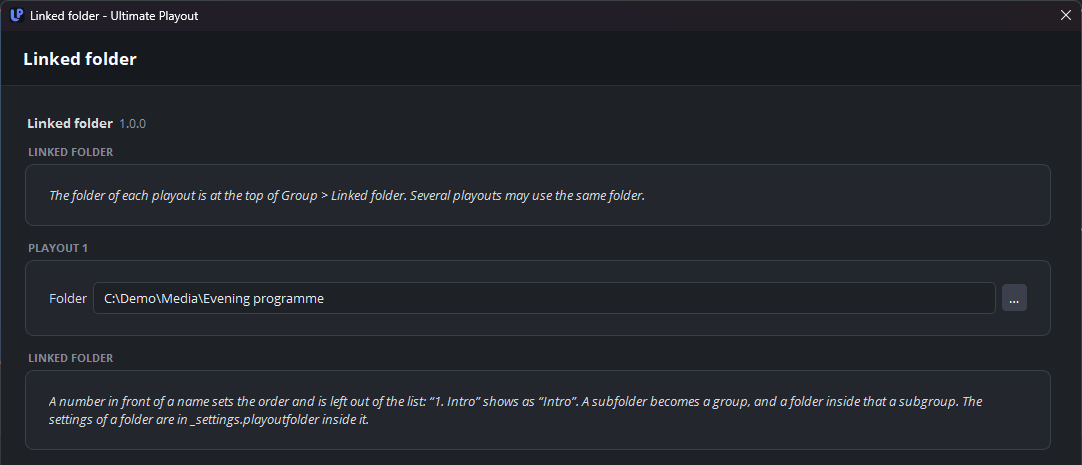
The folder of each playout appears at the top of the list under the arrow. Several playouts may use the same folder.
Saving the list
The part is saved in the list together with the path of its folder. When you open the list again, the program reads the folder again, so the part shows what is in the folder at that moment and not what was in it when you saved.
That is what you need for a permanent playout. Link the folder once and save the list, and the playout follows the folder after every restart.
Removing the link
To remove the part, delete it as you delete any part. The folder and its files stay where they are.
To keep the cues but stop following the folder, right-click the part and choose Ungroup, keep the contents. The cues then become ordinary cues.
When you switch the module off
The part stays in the list and plays what it contained last, but it no longer follows the folder. Linked folder disappears from the Group menu. When you switch the module on again, the part catches up with the folder at once.