
With File → Import… and File → Export…, you move lists and bundles in and out of the program. Both work in the same way for lists and for bundles. When you export, you choose what to export and in which form; when you import, you choose the playout and the place in its list.
Exporting
Choose File → Export…. The window asks three questions.
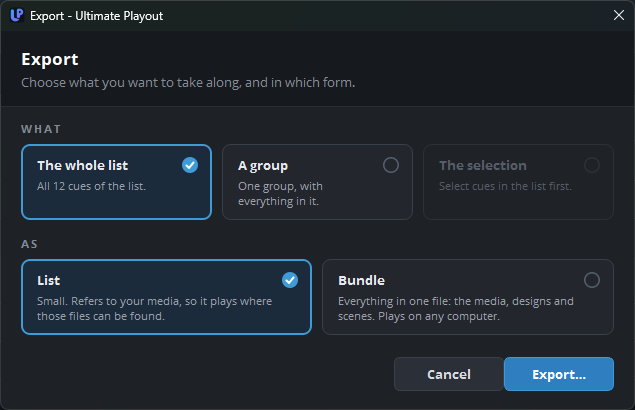
| Question | Choices |
|---|---|
| From playout | The playout whose list you export. This question appears only when you use more than one playout. |
| What | The whole list, A group that you then choose from the list, or The selection. The last choice is available only when you have selected cues in the active playout. |
| As | List, which contains the cues and refers to your media, or Bundle, which contains the cues with their media, designs and scenes. |
Each choice is a card with a short explanation below its name, and the card that you chose has a blue border. Click Export…, choose a name and a folder, and the program writes the file.
A list is small and works wherever the media can be found, for example on another computer that uses the same server. A bundle is one file that plays on any computer. See bundles for what a bundle contains.
Exporting does not change your list. When you export the whole list as a list, the program writes a copy. The name of the list on the right of the toolbar stays the same, and Save still writes to the original file.
Importing
Choose File → Import… and select a file. You can import a list (.playout), an exported group (.playoutgroup) and a bundle (.playoutbundle). The window shows the name of the file and what it contains, and then asks where it must go.
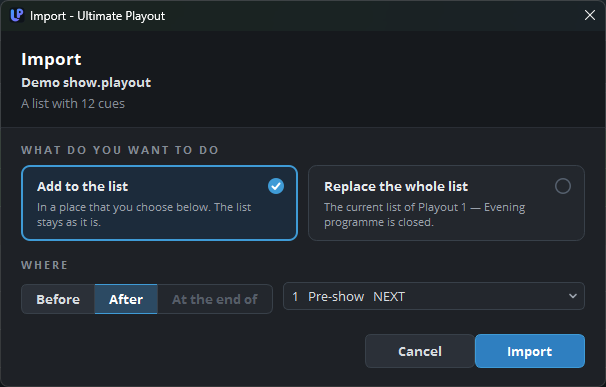
| Question | Choices |
|---|---|
| To playout | The playout that receives the file. Beside each playout, the window shows the name of the list that is open in it. This question appears only when you use more than one playout. |
| What do you want to do | Add to the list, or Replace the whole list. |
| Where | When you add, click Before, After or At the end of, and then choose a line from the list of that playout. |
The list in the window is the current list of that playout. Each line shows its number and its title, and the lines inside a part are indented. The line that is on air shows ON AIR, and the armed line shows NEXT. The window starts on the armed line, so the usual choice is to add the file after the line that comes next.
The window does not show the steps inside a song or a presentation, because new material never goes between those steps. After a song places the file after the whole song. At the end of is available only for a part, and it places the file as the last item inside that part.
Replace the whole list opens a list as the list of that playout. When the current list has changes that you have not saved, the program first asks whether to save them. A group or a bundle can also replace the list. The list then has no file yet, and its name is Untitled list.
After the import, the playout that you chose is the active playout, so you see the list where the file arrived.
Dragging a file in
When you drag a list onto the cue list, the Import window opens. The first choice under Where is then Where you dropped it. A group or a bundle that you drag in goes directly to the place where you drop it, without the window.