
This part takes you from a machine with nothing on it to a first broadcast that runs. It is meant to be read in order, once. Everything after this part is reference material you come back to; this part you read through.
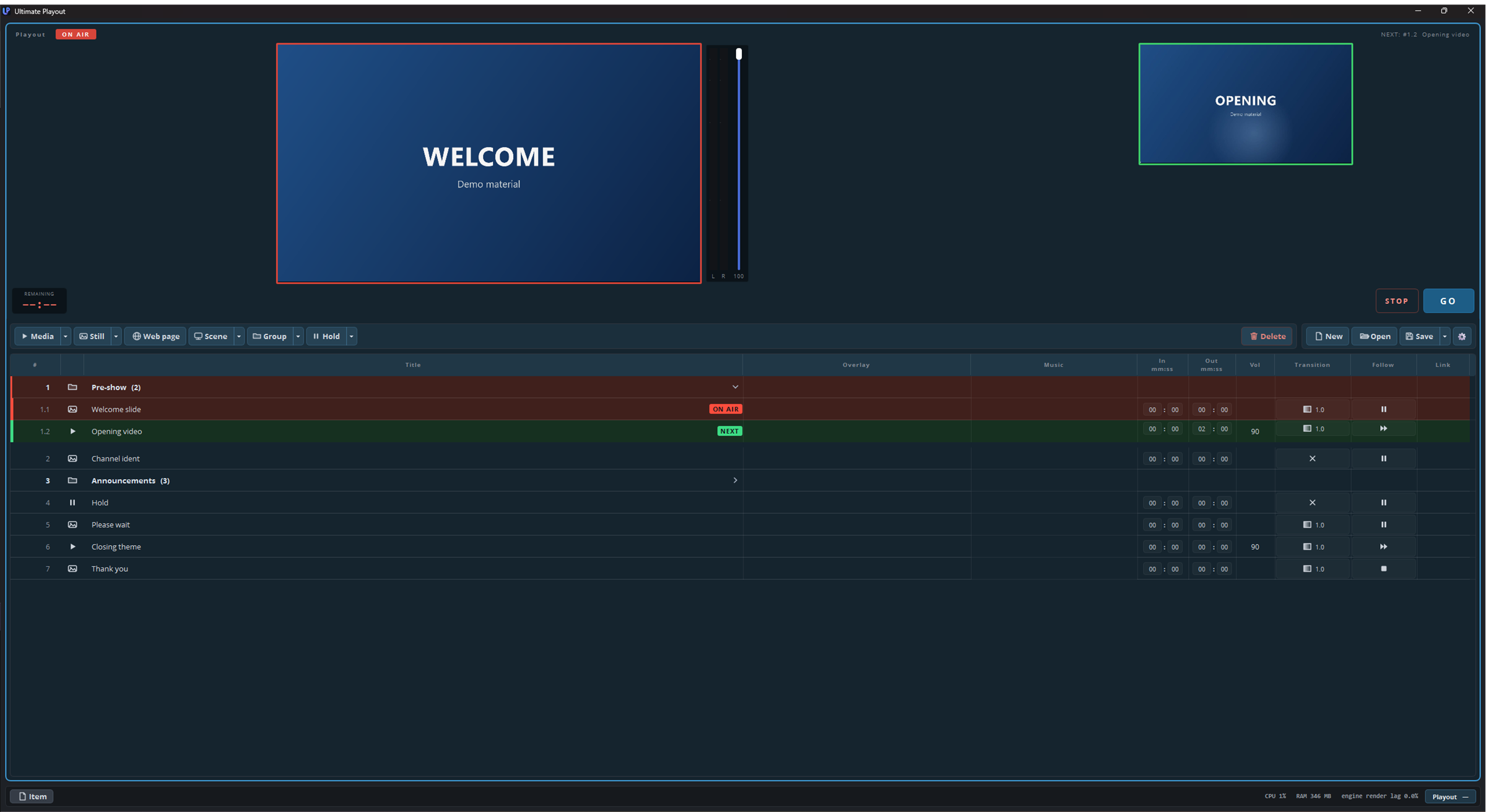
The seven pages, and what each one settles:
| Page | What it covers |
|---|---|
| What is Ultimate Playout | What the program does and how it differs from live switching. Read this first if you have only ever used switcher-style software. |
| Key concepts | Cue, playout and module — the three words the rest of the documentation is built on, plus the handful of terms you will see on screen. |
| Installing | What the setup does, what it asks you, and what it leaves on disk. Including why an OBS Studio you already have is not touched. |
| The first start | The loading screen, the folders that appear in Documents, choosing your language, and what the program remembers between sessions. |
| A tour of the window | Every part of the screen named: monitor panels, toolbar, cue list, side panels, status bar. Come back here whenever a later page says “the transport bar”. |
| Your first cue list | Building a working rundown: getting files in, putting them in order, saving it. |
| Going live | Arming, GO, and reading the colours while the show runs. What the keyboard does when it matters. |
What this part does not cover
Anything a module adds. Songs, lower thirds, subtitles, presentation import, video-service cues and switcher control are separately supplied components, each with its own documentation. If a button in your copy is not described here, it almost certainly comes from a module — see the module documentation for it.
Depth. This part shows you the shortest route to something that works. Each subject returns in a later part in full: the cue list in part 2, cue types in part 3, outputs in part 5, and so on. Where a page here says “for now, leave this”, the later part tells you what the setting actually does.