
This page builds one complete, working rundown from an empty list. Getting files in, putting them in the right order, trimming what is too long, deciding what follows what, and saving the result. At the end of it you have a file you can open next week and run.
It is deliberately the short route. Every step here comes back in full in part 2 and part 3; this page gets you to something that works.
Step 1 — Get your material in
Two ways, and they do the same thing.
Drag it in. Select your files in File Explorer and drop them on the cue list. A line shows where they will land, including inside a group — so you can drop a block of clips exactly where it belongs.
Or use the toolbar. Media for video and audio, Still for images. That opens a file dialog which accepts exactly the same file types.

What you can drop
| What | Becomes |
|---|---|
| Video and audio files | A media cue each |
| Images | A still each |
| A folder | A group containing what is in it |
A playlist file (.m3u, .m3u8, .pls) | A media playlist |
A shortcut (.url) | The link behind it |
| A web address | A media cue if it plays directly, otherwise a web page |
A .playoutgroup or .playoutbundle | The exported group, back in your list |
A .playout file | A whole rundown — it asks whether to open it or add it as a group |
Anything the program cannot read is not added and is reported once, in a single message listing what was skipped. You never get a silent gap in your list, and you never get a cue that plays black because the file was never readable.
Step 2 — Put it in order
Drag lines up and down. A group moves as one block, with everything inside it.
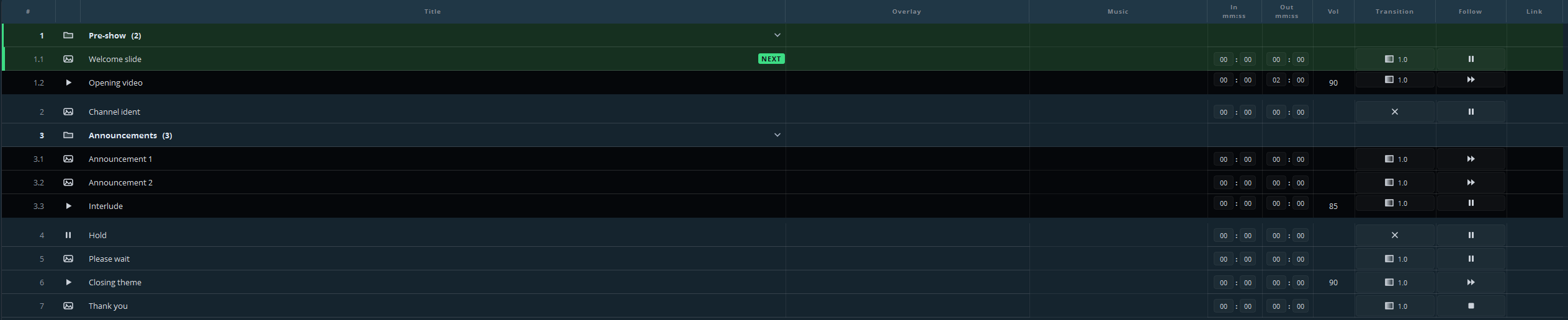
The numbers follow the structure and update themselves: 1, 2, 3 at the top level, 3.1 and 3.2 inside a group. You never renumber anything by hand.
Use groups from the start. One group per part of the show — the opening, the notices, the closing — turns a list of forty lines into a list of six you can read at a glance. Click the heading to collapse or expand a group; a collapsed group still shows the status of whatever is playing inside it.
Step 3 — Check each cue
The duration is filled in for you as soon as the file is loaded, so the list tells you how long the show is before you have set anything.
Click a line to arm it. A still or a scene appears in the preview straight away — that is your check for “right file, right shot, right way up”, without anything going to air.
A clip stays black until you press GO, because video and audio only run when they are live. To check one, take it to air while nobody is watching.
Step 4 — Trim and set
Four columns decide how a cue behaves. All four can be set on a whole selection at once through the right-click menu, which is how you do a list of thirty without going mad.
| Column | What to set |
|---|---|
| In / Out | Where in the file this cue starts and stops. The file is untouched. |
| Vol | How loud, 0–100 %. |
| Transition | How it comes in: a hard cut, or a fade. |
| Follow | What happens at the end: hold on the last frame, go on to the next cue, repeat, or stop. |
Follow is the column that decides how much work you have during the show. Set it to next for a run of clips that must play back to back, and leave it on hold wherever a human being decides when the show moves on. Those held points are the moments you press GO.
Step 5 — Save
Save, on the right of the toolbar. Your lists go to
DocumentsUltimate PlayoutLists as a .playout file, and that folder is
where Open starts, so you never have to go looking.
A .playout file holds the rundown — the cues and their settings — and points at your media where it lives. To hand the whole show to someone else, use the arrow beside Save and export as a bundle: that packs the list plus every file it uses into one .playoutbundle.
Opening it again
Open, and pick the file.
If any cue points at a file that is no longer where it was, you are told when the list opens: how many cues it concerns, with a warning mark and the full path in the tooltip on each affected line. That message exists so that you find out on Saturday afternoon rather than on Sunday morning.
Under Settings → General you can have the last list reopen automatically on startup, which for a machine that runs one recurring show is usually what you want.
A sensible first list
If you want something to practise on, this is a shape that covers most of what you will meet:
1   Group: Before the start
1.1   Still — welcome slide          follow: hold
2   Opening clip                     follow: next
3   Hold — black                     follow: hold
4   Group: Notices
4.1   Notice 1                       follow: next
4.2   Notice 2                       follow: hold
5   Closing clip                     follow: stop
Four GOs, and everything between them runs by itself.
Where to go next
Going live — running this list in front of an audience.